
Reputation Management
Wipe Out Hundreds of Old Gmail Messages Directly from Your Phone

Sep
Wipe Out Hundreds of Old Gmail Messages Directly from Your Phone
Clear Old Gmail Messages From Your Phone in Minutes
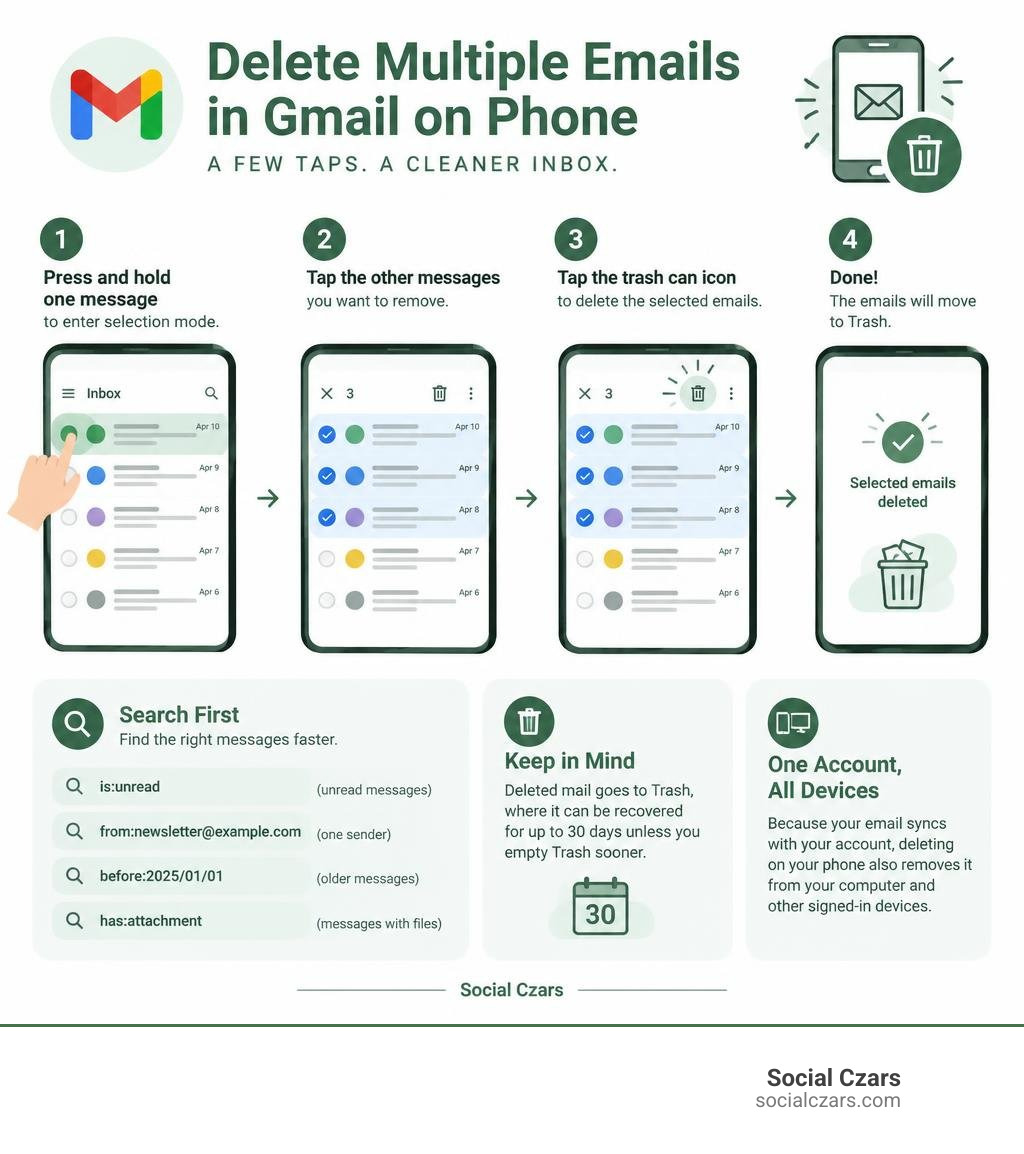
To delete multiple emails in the Gmail app, press and hold one message to enter selection mode, tap the other messages you want to remove, then tap the trash can icon. On Android, you may be able to use the select-all control for the messages currently loaded, but Gmail mobile typically handles bulk deletion in batches of up to 50 emails.
For a faster cleanup, search before selecting. Try:
is:unreadto find unread messagesfrom:newsletter@example.comto remove mail from one senderbefore:2025/01/01to target older messageshas:attachmentto review emails with files
Deleted mail goes to Trash, where it can be recovered for up to 30 days unless you empty Trash sooner. Because Gmail syncs with your Google account, deleting an email on your phone also removes it from Gmail on your computer and other signed-in devices.
I’m John DeMarchi, founder of Social Czars, with 15 years of corporate communications experience and more than a decade helping leaders manage their digital presence. Knowing how to delete multiple emails in Gmail on phone is a small but useful part of keeping your online work life organized, private, and easier to manage.
How to delete multiple emails in gmail on phone word guide:
- how to clean up your gmail
- how to delete all gmail
- a simple guide to freeing up space in your gmail account
Step-by-Step Instructions: How to Delete Multiple Emails in Gmail on Phone
Dealing with thousands of promotional pitches, expired meeting invites, and automated notifications creates unnecessary cognitive fatigue. The average professional spends roughly 28% of their workday managing email, and when your inbox is a runaway train, that mental clutter follows you everywhere you take your smartphone.
Beyond the mental weight, there is a tangible technical cost: the Gmail mobile app caches messages locally on your device, consuming up to 500MB of storage per 1,000 messages.
If you want to clear out that digital junk without sitting at a desktop computer, the official mobile interface gives you straightforward multi-select gestures. You can review the official Google documentation on how to Delete messages in Gmail – Android – Gmail Help to see their basic framework, or follow our refined breakdown below for both major mobile platforms.
How to Delete Multiple Emails in Gmail on Phone for Android Users
The Android Gmail app provides an intuitive selection mode that lets you knock out unwanted messages in batches. Here is how we recommend doing it:
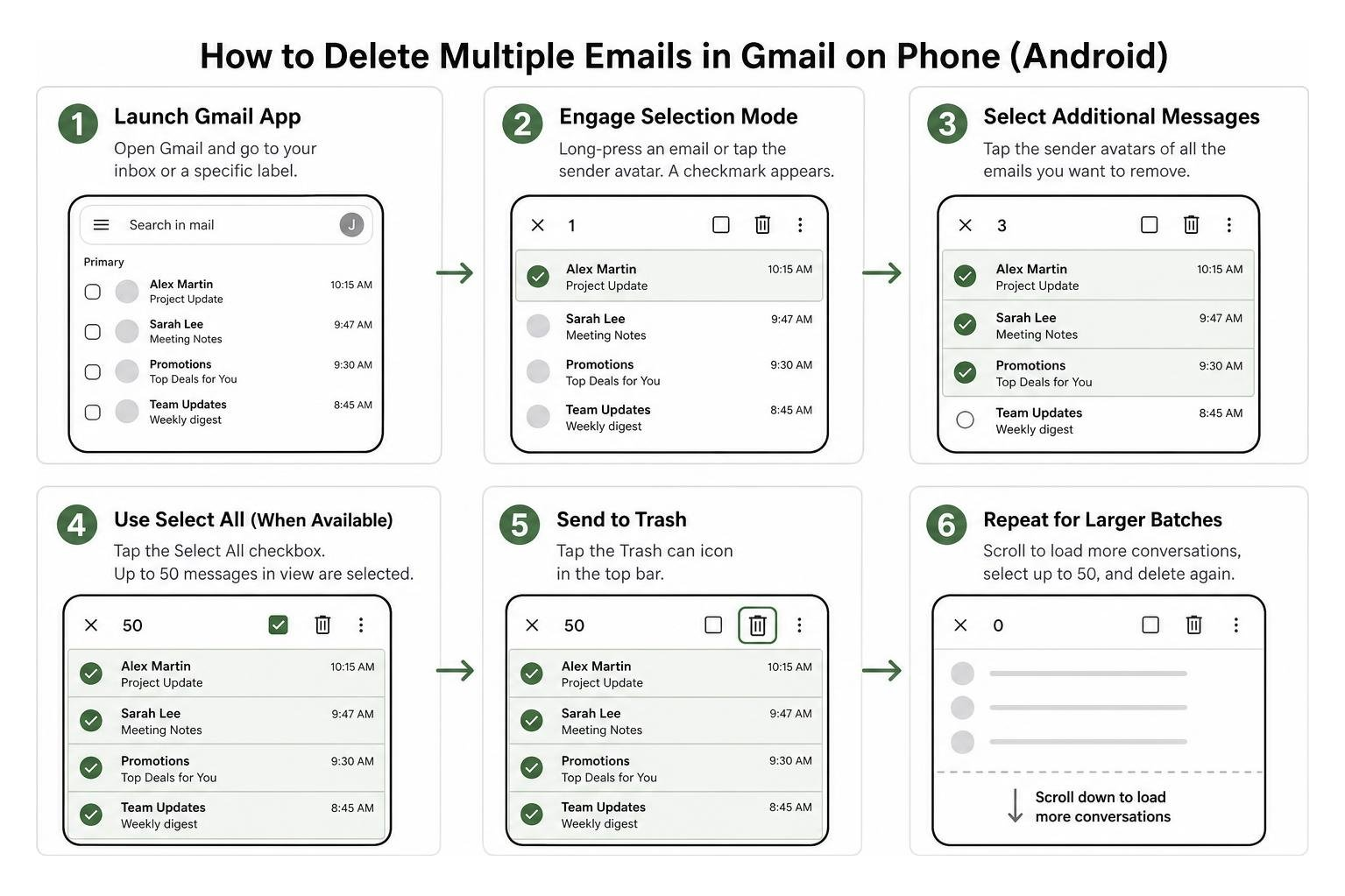
- Launch the Gmail App: Open Gmail on your Android device and navigate to your Primary inbox or the specific label you want to purge.
- Engage Selection Mode: Long-press on an email conversation, or simply tap the circular profile avatar/sender icon to the left of the message. A blue checkmark will appear.
- Select Additional Messages: Continue tapping the sender avatars of all the emails you wish to remove.
- Use Select All (When Available): If visible at the top of your screen, tap the Select all checkbox. The mobile app defaults to selecting a batch of up to 50 messages currently loaded in your view.
- Send to Trash: Tap the Trash can icon located in the top navigation bar.
- Repeat for Larger Batches: Scroll down to load the next set of conversations, tap the top checkbox again, and delete the next 50-message batch.
How to Delete Multiple Emails in Gmail on Phone on iOS and iPhone
The interface on Apple devices is just as streamlined, though the gesture targets differ slightly depending on your version of the iOS app:
- Open Gmail on iOS: Launch the app from your home screen.
- Activate Multi-Select: Tap directly on the circular profile icon or letter avatar on the left side of the email preview. Tapping the avatar immediately turns it into a checked box.
- Select Your Batch: Tap down the list on subsequent contact avatars to highlight every message you want to discard.
- Execute the Deletion: Tap the Trash can icon in the upper right menu to move all selected threads directly into your Trash folder.
- Configure Swipe Actions: To make future daily maintenance effortless, navigate to Settings > Inbox customizations > Mail swipe actions and assign the “Trash” action to a quick left or right swipe.
Advanced Mobile Strategies: Deleting Thousands of Emails and Unread Messages
When you are staring down an inbox with 14,000 unread messages, tapping 50 avatars at a time feels like trying to bail out the ocean with a teaspoon. To rapidly clear thousands of conversations from your phone, you need smarter filtering tools and web-based execution.
If your goal is a true clean slate, you can learn how to delete all Gmail emails to finally achieve inbox zero using advanced administrative sweeps.
Using Mobile Search Filters to Target Unread and Specific Emails
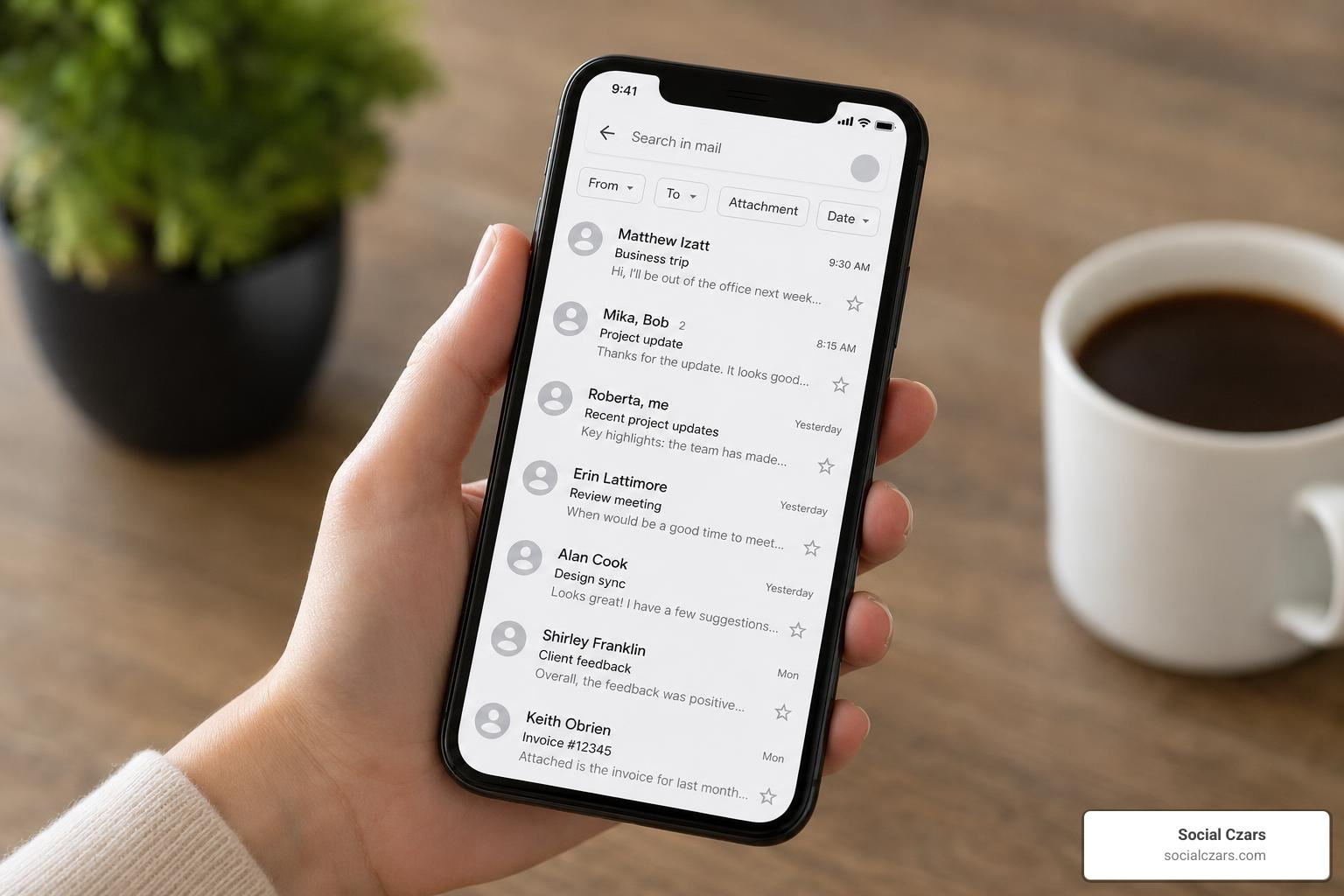
The search bar at the top of your mobile Gmail app is your most powerful bulk cleanup weapon. By filtering for specific categories or dates before entering selection mode, every batch of 50 messages you delete eliminates pure junk rather than important correspondence.
Here are the most effective mobile search operators:
is:unread: Isolates every unread notification, newsletter, and alert across your account.category:promotions: Targets marketing campaigns and retail newsletters.category:social: Pulls updates from LinkedIn, X, Facebook, and forums.before:2024/01/01: Surfaces historical emails older than a specific date threshold so you can purge outdated correspondence.has:attachment larger:10M: Displays messages with massive files that are hogging your storage space.
Combine these operators for precision strikes (for example: category:promotions older_than:1y). Once the filtered results appear, use your long-press gesture, select all 50 displayed items, and trash them.
To stop the influx permanently at the source, you should also nuke the junk and bulk unsubscribe from emails in Gmail so your cleared inbox stays pristine.
The Mobile Web Browser Method to Delete Thousands at Once
If you want to bypass the 50-message mobile cap entirely without firing up a laptop, you can force your mobile browser into desktop mode. This unlocks the full-featured web client directly on your phone.
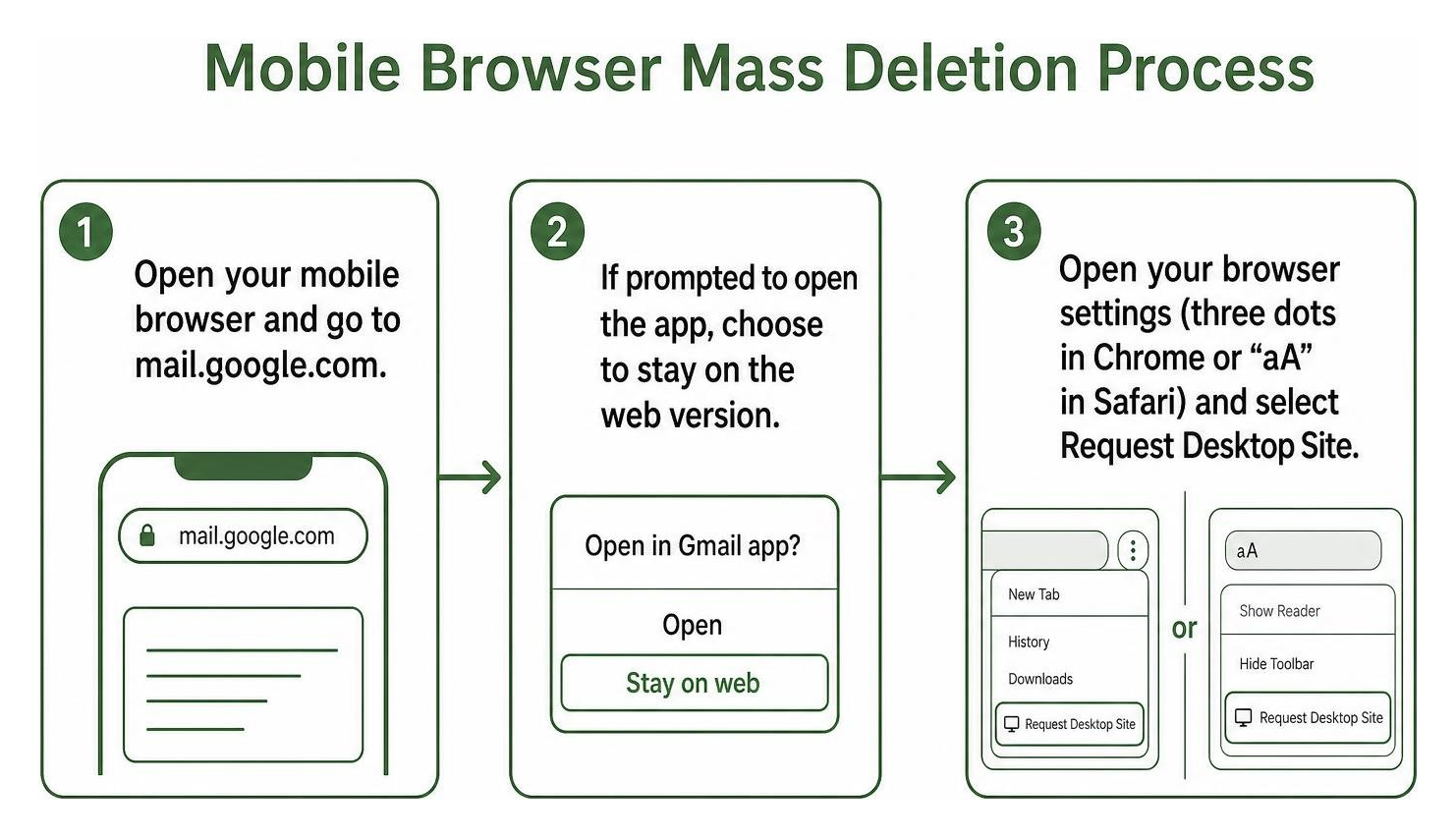
Follow these steps in mobile Chrome or Safari:
- Open your mobile browser and go to
mail.google.com. - If prompted to open the app, choose to stay on the web version.
- Open your browser settings (the three dots in Chrome or the “aA” icon in Safari) and select Request Desktop Site.
- Once the desktop interface loads, tap the Select All checkbox above your inbox messages.
- Look for the blue text banner that appears stating: “Select all [X] conversations in Primary”. Tap that link.
- Tap the Trash icon. Gmail will confirm the bulk action and delete thousands of messages in a single command.
| Feature | Gmail Mobile App | Mobile Web Browser (Desktop Mode) |
|---|---|---|
| Max Selection Batch | Up to 50 messages | Entire folders (thousands at once) |
| Search Filter Support | Full search operator support | Full search operator support |
| Interface Speed | Fast, touch-optimized | Slower, requires zooming on mobile |
| Select All Conversations | No (limited to loaded view) | Yes (via global select banner) |
| Best Used For | Daily maintenance & quick sweeps | Mass inbox purges & annual cleanups |
Managing Trash, Permanent Deletion, and Message Recovery on Mobile
Moving emails out of your inbox does not mean they are gone forever. Gmail operates on a safety-first model, routing all deleted conversations to your Trash (or “Bin”) folder for a 30-day grace period.
If you are dealing with persistent promotional floods or dangerous phishing attempts, pair your mobile maintenance with an automated solution to stop drowning in spam with the right Gmail cleanup app.
Permanently Emptying the Trash to Free Up Phone Storage
Emails sitting in your Trash continue to count against your 15GB unified Google account storage quota. Furthermore, because the mobile app maintains local database caches, your phone will not immediately reclaim local storage space until that trash is emptied and the app syncs.
To permanently purge these messages on your phone:
- Tap the three horizontal lines (hamburger menu) in the top left corner of the Gmail app.
- Scroll down and tap Trash (or Bin).
- At the top of the list, tap the text link that reads Empty trash now.
- Confirm your selection.
All messages in the folder will be permanently deleted from Google’s servers. To immediately reclaim device memory after a massive purge, head into your phone’s system settings under Apps > Gmail > Storage and tap Clear Cache.
How to Recover Accidentally Deleted Emails on Your Phone
We have all felt that sudden spike of panic after accidentally selecting an important client thread or financial receipt during a rapid mobile cleanup sweep.
As long as you are within the 30-day retention window and have not manually emptied your trash, recovering messages is straightforward:
- Open the Trash folder from the side menu in the Gmail app.
- Locate the email you need to restore. You can use the search bar inside the Trash folder to search by sender or subject.
- Long-press the email (or tap its sender avatar) to select it.
- Tap the three vertical dots in the top right corner.
- Select Move to and choose Primary (or your preferred folder/label).
The email will immediately return to your active inbox and sync across all connected devices.
Frequently Asked Questions About Mobile Gmail Deletion
Will deleting emails on my phone also delete them from my computer?
Yes. Gmail operates on a cloud-synchronized server architecture using modern IMAP protocols. When you delete a message on your Android or iPhone, that action sends an update to Google’s central mail servers. As soon as your computer, tablet, or web browser connects to the internet, it mirrors those changes, removing the deleted threads across every signed-in endpoint.
Can I delete more than 50 emails at a time in the mobile Gmail app?
Within the native mobile application, bulk selection is strictly limited to batches of up to 50 conversations per action. Google designed the mobile app this way to protect device memory and prevent accidental large-scale data loss over mobile connections. If you need to purge hundreds or thousands of emails simultaneously, use the mobile browser desktop-mode method outlined above.
Does deleting emails on my phone immediately free up device storage?
Not instantly. When you move emails to Trash, they are staged for deletion, but local database caches may retain temporary data until the next background sync cycle completes. For instant space recovery on an Android phone, clear the Gmail app cache in your device settings. On iOS, offloading and reinstalling the app or restarting your device after emptying the Trash forces a full local storage recalculation.
Conclusion
Mastering mobile inbox management gives you back control over your daily focus and keeps your device running efficiently. By using structured search filters, taking advantage of multi-select gestures, and leveraging browser desktop modes for mass cleanups, you can maintain a clutter-free inbox right from your smartphone.
At Social Czars, we understand that executive efficiency and digital reputation go hand-in-hand. For founders, VIPs, and high-profile leaders across New York City, Miami, Los Angeles, and London, an orderly digital footprint is an essential asset. When you are ready to take your digital management to the next level, our team is here to help you audit, optimize, and clean up your Google presence to ensure your public-facing brand matches your professional stature.
