
Reputation Management
Nuke the Junk: How to Bulk Unsubscribe from Emails in Gmail

Sep
Nuke the Junk: How to Bulk Unsubscribe from Emails in Gmail
Unsubscribe From Gmail Bulk Emails Without Giving Up Control
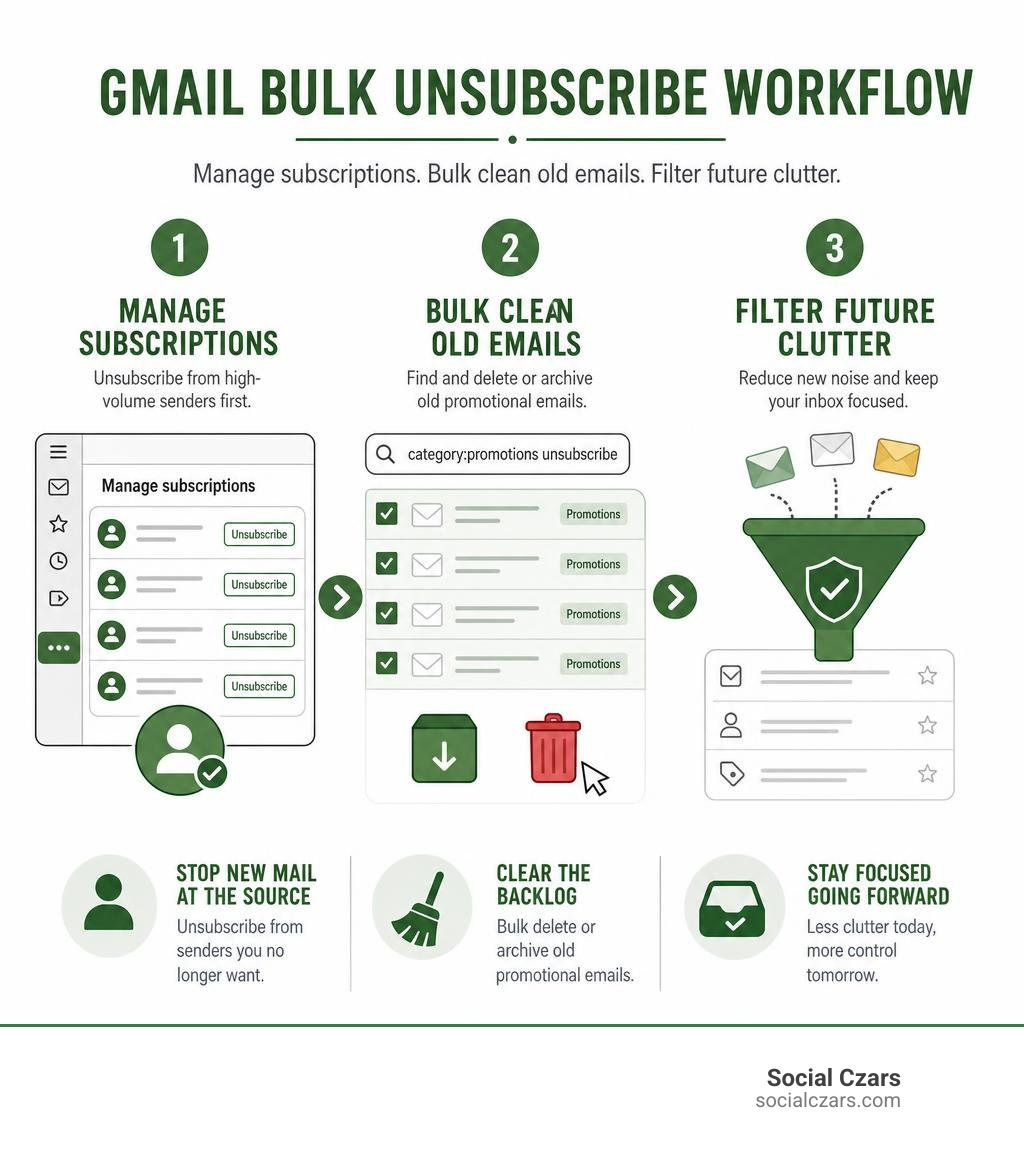
There is no single Gmail button that unsubscribes you from every sender at once. The fastest safe method is to open Gmail’s Manage subscriptions panel, unsubscribe from the high-volume senders first, then use Gmail search to bulk-delete or archive the old promotional emails they already sent.
- In Gmail on a desktop browser, open the left menu, select More, then Manage subscriptions.
- Click Unsubscribe beside each unwanted sender, starting with those that email most often.
- Search
category:promotions unsubscribeto find older newsletter messages, then select all matching conversations and delete or archive them.
This is the practical answer to how to unsubscribe all emails in gmail at once: stop new mail at the source, then clear the backlog separately. Gmail can streamline the sender-by-sender opt-out work, but it does not offer a true “unsubscribe all” command.
Be careful with unknown or suspicious messages. Research from 2025 found that 1 in 644 unsubscribe links led to a malicious site. Use Gmail’s built-in controls for recognizable brands, and report suspicious mail as spam rather than clicking a link that may confirm your address is active.
I’m John DeMarchi, founder of Social Czars and a crisis communications SEO professional with 15 years of in-house corporate experience. For executives who need a clean, private digital workflow, understanding how to unsubscribe all emails in gmail at once is a simple but valuable part of reducing daily noise and protecting attention.
Key terms for how to unsubscribe all emails in gmail at once:
The Core Strategy: How to Unsubscribe All Emails in Gmail at Once
The average corporate inbox receives over 120 messages per day, with commercial marketing making up roughly 60% of that incoming flood. If you have spent years registering for services, downloading whitepapers, or buying products online, your inbox backlog can easily house hundreds of active lists.
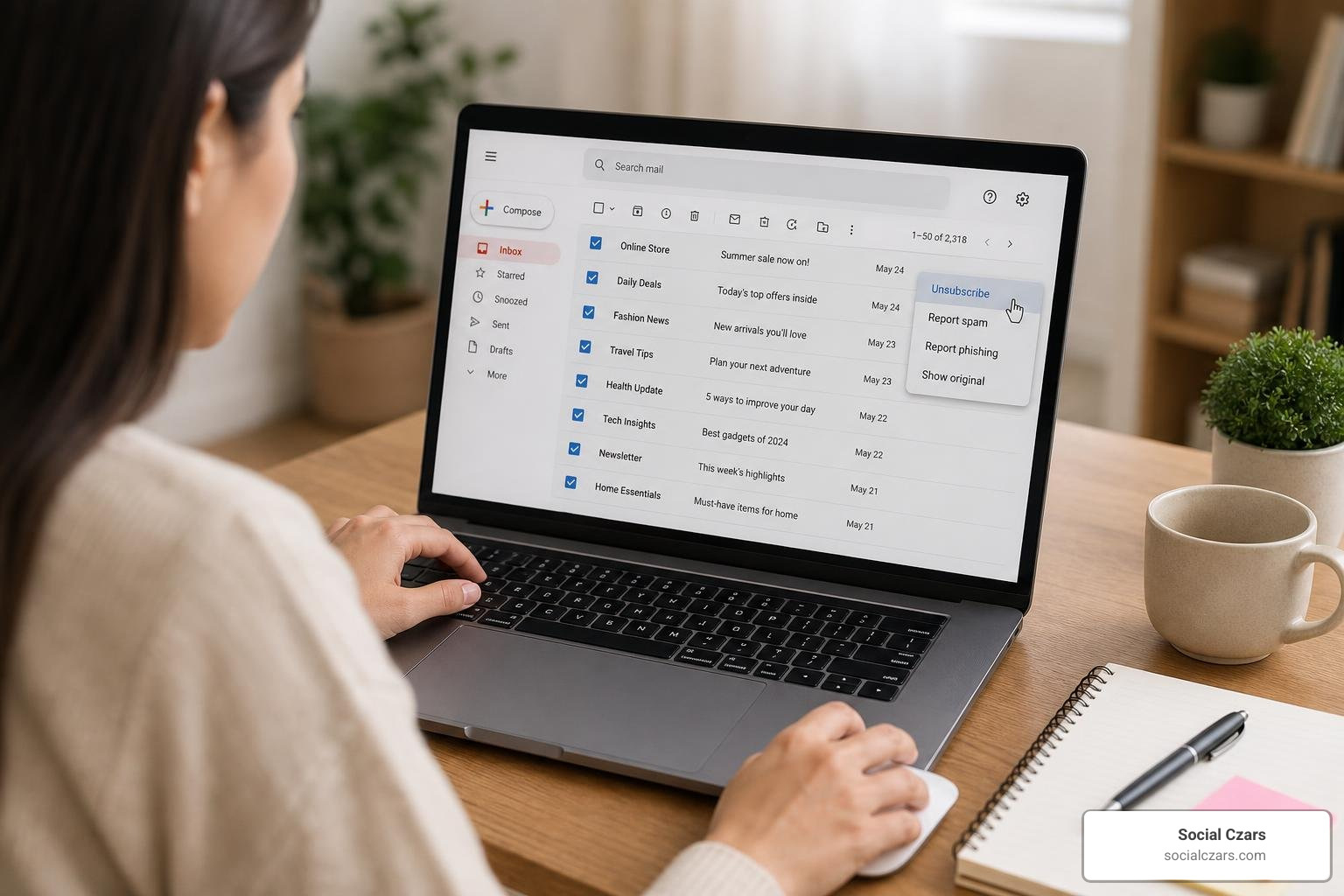
Manual unsubscribing costs roughly 25 to 40 seconds of attention per sender. If you have a 200-sender backlog, that amounts to over 2.5 hours of tedious manual clicking. When our clients across New York City, Miami, Los Angeles, and London reach out because their digital workspaces have become unmanageable, we employ a two-step framework: cut off the incoming pipeline, then purge the historical backlog.
To clear existing promotional messages across your account:
- Open Gmail on your desktop browser.
- Type
unsubscribeinto the top search bar and press Enter. Because global marketing laws require commercial senders to include an opt-out mechanism, this query isolates roughly 99% of all marketing blasts. - Click the master checkbox at the top left of your email list (above the inbox tabs).
- By default, Gmail selects only the 50 or 100 conversations visible on your screen. Look for the blue banner that appears: click Select all conversations that match this search.
- Click the Trash icon to delete them, or click Archive if you wish to remove them from your primary view while retaining them in storage.
For a detailed walkthrough on mass-purging storage without leaving orphaned threads behind, review our step-by-step guide on how to delete all Gmail emails to finally achieve inbox zero.
Advanced Search Query: How to Unsubscribe All Emails in Gmail at Once
A blanket search for unsubscribe can sometimes surface critical account notifications or receipts containing footer disclaimers. To prevent deleting items you need, refine your search with advanced operators:
category:promotions unsubscribe: Isolates marketing messages filtered automatically by Google’s sorting algorithm.older_than:1y unsubscribe: Targets outdated promotional newsletters older than twelve months, leaving recent order confirmations untouched.category:promotions older_than:6m unsubscribe: Finds medium-aged promotional materials taking up valuable Google account storage.unsubscribe -from:bankofamerica.com -from:stripe.com: Excludes essential financial institutions and transactional senders from your cleanup query.has:attachment larger:10M unsubscribe: Finds heavy promotional brochures and slide decks that congest inbox storage limits.
Combine these queries to isolate the exact cohort of marketing mail you wish to purge before hitting the master select button.
Creating Perpetual Auto-Delete and Filter Rules
If certain high-volume senders continue to push messages despite unsubscribe requests, build automated server-side filters to handle them before they ever reach your screen:
- In the Gmail search bar, click the Show search options slider icon on the far right.
- In the Has the words field, enter
unsubscribe. - In the Doesn’t have field, add domains you want to keep (e.g.,
-from:yourfavoritebrand.com). - Click Create filter.
- Select Skip the Inbox (Archive it) and optionally check Apply the label or Delete it.
- Check Also apply filter to matching conversations to clean your backlog simultaneously.
- Click Create filter to activate the rule.
If you are structuring a broader organizational overhaul for your team or personal address, follow our complete playbook on how to clean up your Gmail inbox the right way.
Using Gmail’s Built-in Manage Subscriptions Feature
To prevent new emails from arriving, use Gmail’s native centralized dashboard. Google developed this dedicated management hub to give users immediate visibility into their active subscriptions.
You can explore official updates on this feature directly on Google’s blog via Declutter your inbox with Gmail’s newest feature, as well as the standard desktop guidelines at Manage your subscriptions in Gmail – Computer.
To use the tool:
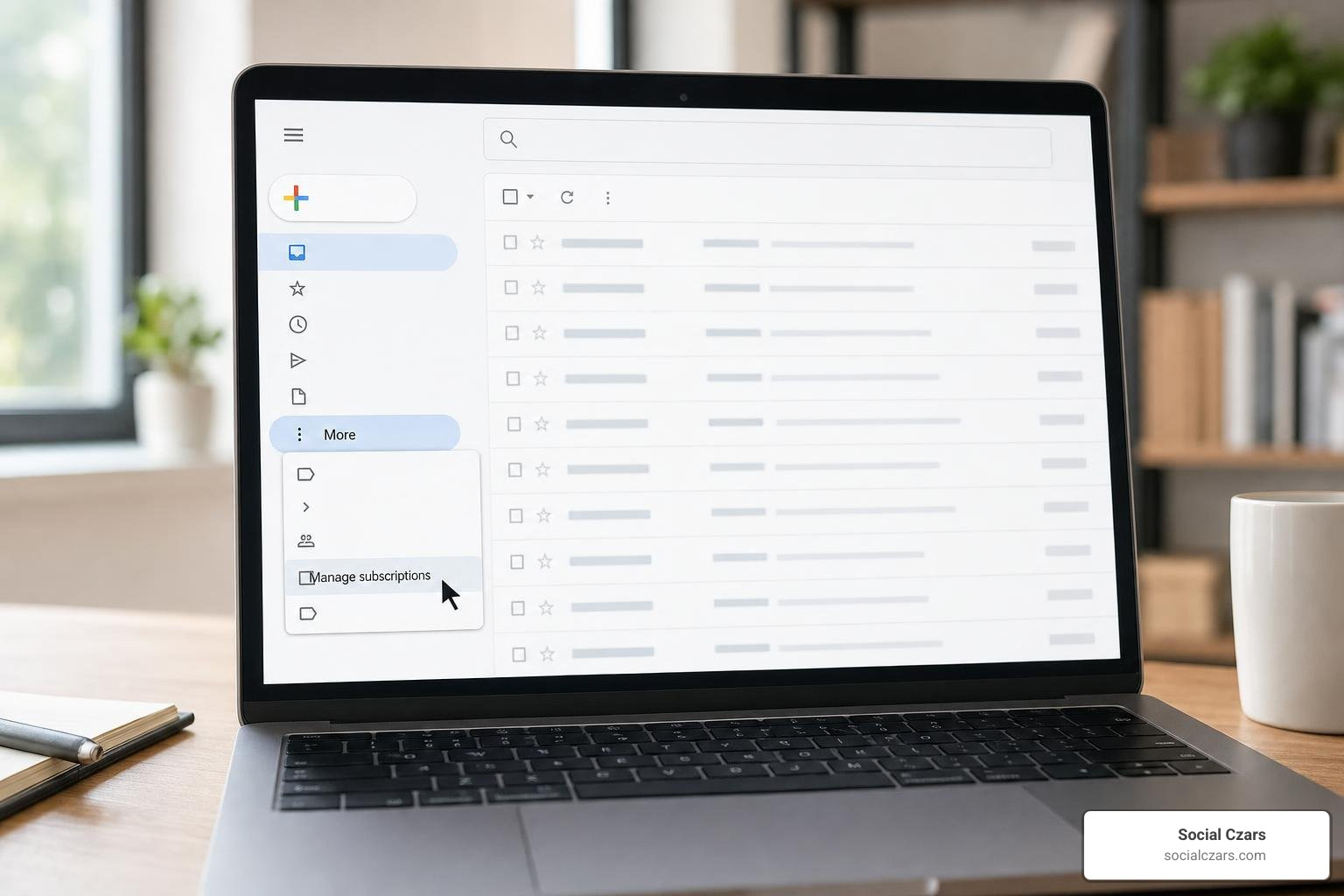
- In desktop Gmail, navigate to the left-hand navigation menu.
- Click More and scroll down to select Manage subscriptions.
- Gmail displays an aggregated list of commercial senders, sorted neatly by recent sending frequency (e.g., “10-20 emails per month”).
- Click Unsubscribe next to each unwanted sender.
- If the sender requires an external confirmation page, click the pop-up prompt Go to website to complete the opt-out directly on their site.
Testing on an active 12-year-old account surfaced 78 recurring senders pushing more than once weekly, with the top 10 accounts representing over 41% of total promotional volume. By systematically clicking down this list for just five minutes, you eliminate the vast majority of future daily clutter.
How the Subscription Manager Identifies Senders
The Manage Subscriptions dashboard relies on the modern RFC 8058 technical standard. Compliant commercial senders embed machine-readable List-Unsubscribe POST headers into their outgoing emails.
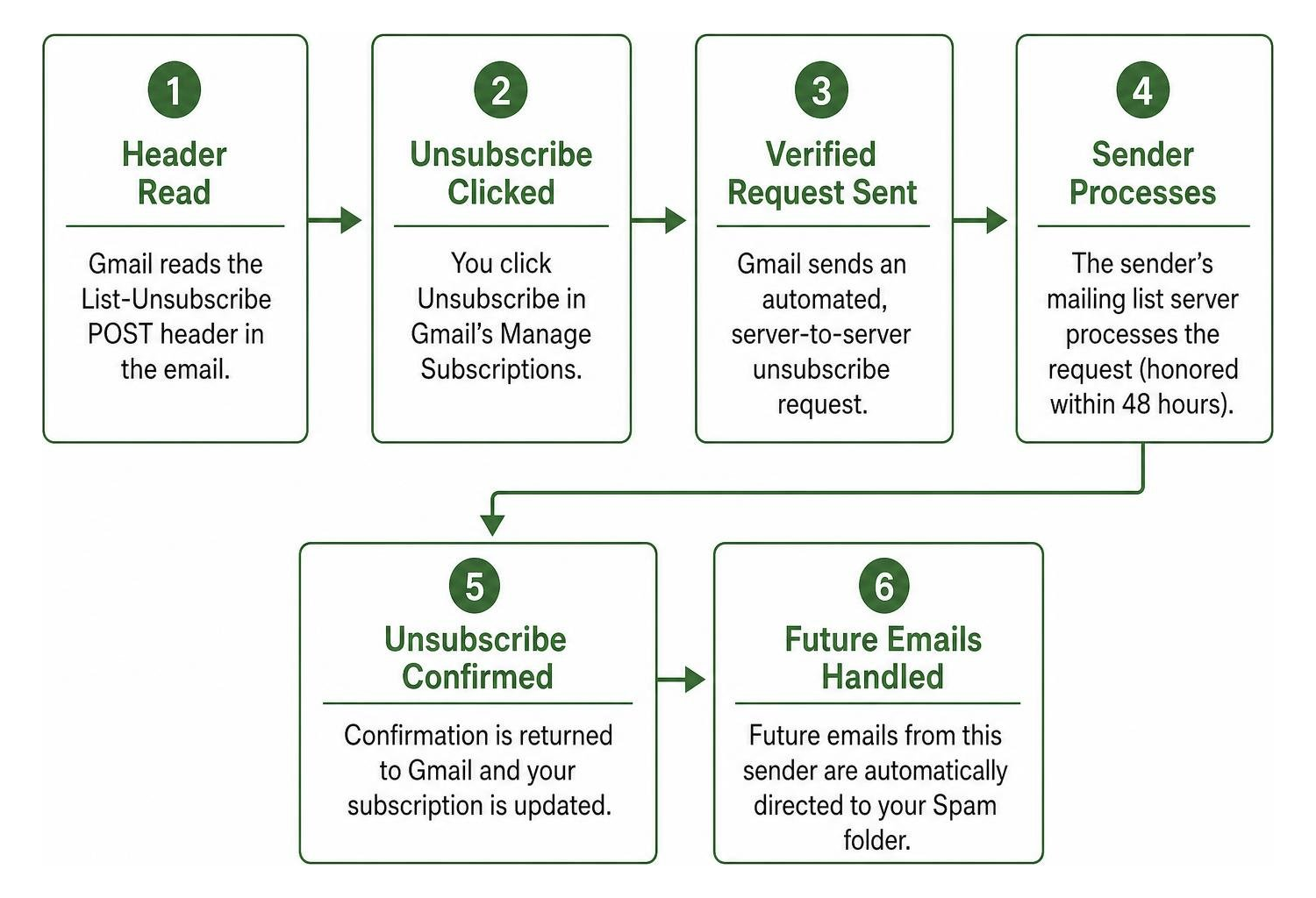
When you click unsubscribe inside Gmail’s interface:
- Gmail dispatches an automated, verified server-to-server request to the sender’s mailing list server.
- Under global bulk-sender guidelines, legitimate senders sending high volumes must honor one-click unsubscribe requests within a strict 48-hour compliance window.
- Once processed through the subscription manager, Gmail automatically directs any subsequent rogue messages from that specific sender directly to your Spam folder.
Troubleshooting Missing Manage Subscriptions Tab
If the Manage Subscriptions feature does not appear in your left sidebar, use these solutions:
- Use the Direct URL Shortcut: Navigate directly to
https://mail.google.com/mail/u/0/#subin your browser address bar while logged in. - Update Your Browser/App: Ensure your web browser or mobile Gmail client is running the latest software build.
- Google Workspace Policy: If you use an enterprise Google Workspace account, your network administrator may have disabled or restricted native subscription management panels.
- Account Activity Threshold: New accounts or inboxes with minimal commercial marketing traffic will not show the tab until Gmail detects active mailing lists carrying valid
List-Unsubscribeheaders.
Third-Party Cleaners vs. Native Tools: Privacy and Safety Analysis
Many users turn to third-party “cleaner” web applications promising a magical, one-click bulk unsubscribe button. As digital privacy and reputation advisors, we strongly caution against these services.
To perform bulk actions, third-party cleanup apps require OAuth access permissions to read, compose, send, and permanently delete your email messages. Handing broad access to outside servers introduces serious cybersecurity vulnerabilities:
- Data Harvesting & Commercial Mining: In past regulatory investigations, major email-cleaning tools faced FTC enforcement after quietly monetizing user inboxes by scraping receipts, browsing histories, and purchase patterns for market research firms.
- Expanded Attack Surface: Storing access tokens on third-party servers means that if that platform experiences a breach, your entire inbox archive is exposed.
- Active Address Validation: Blind automated scrapers can trigger unsubscribe links in malicious spam emails, inadvertently confirming to scammers that your account is active and monitored.
If your inbox is completely overwhelmed and requires specialized software assistance, review our guide on how to stop drowning in spam with the right Gmail cleanup app to select tools that respect data privacy without compromising your personal records.
Unsubscribing vs. Blocking vs. Reporting Spam
Understanding the difference between native email management tools ensures you apply the correct response without compromising your security.
| Action | What It Does Technically | When to Use It | Risk Factor |
|---|---|---|---|
| Unsubscribe | Sends an RFC 8058 opt-out signal to remove you from the sender’s database. | Legitimate brands, opted-in newsletters, verified stores. | Low (on legitimate senders). High if clicked inside phishing emails. |
| Block Sender | Leaves your address on their mailing list, but automatically routes all future emails to Spam. | Persistent marketing senders who ignore opt-outs, aggressive salespeople. | Zero privacy risk; executes entirely inside Google’s servers. |
| Report Spam | Moves email to Spam and updates Google’s global filtering algorithms to protect other users. | Malicious links, phishing attempts, spoofed domains, scam solicitations. | Zero risk; prevents dangerous outbound communication with bad actors. |
With research showing that 1 in every 644 unsubscribe links leads to a malicious website, never click “Unsubscribe” in an email from an unknown sender. If an email looks suspicious or unauthenticated, always use Report spam instead.
Long-Term Inbox Defense: Aliases and Inflow Prevention
Once you have reclaimed your inbox, establish simple intake habits to prevent promotional clutter from accumulating again:
- Plus-Addressing (
username+tag@gmail.com): Gmail allows you to append a plus sign and arbitrary text to your username. When signing up for discounts, enteryourname+shopping@gmail.com. You can create a filter that routes any message addressed to that alias directly into a separate review folder, bypassing your primary inbox entirely. - Client-Side Alias Services: Use privacy services like Apple’s Hide My Email or dedicated forwarding aliases. These tools generate randomized forwarding addresses for each merchant. If a merchant sells your address or sends excessive spam, you can deactivate that specific alias without changing your actual Gmail account.
- Quarterly Subscription Audits: Schedule a recurring calendar reminder every 90 days. Spend three minutes reviewing the
Manage subscriptionsdashboard to disconnect services you no longer use.
Frequently Asked Questions About Bulk Unsubscribing in Gmail
How to Unsubscribe All Emails in Gmail at Once on Mobile Devices?
On Android and iOS, Google provides native subscription controls directly inside the official app. For detailed platform-specific steps on Android, refer to Unsubscribe from an email – Android – Gmail Help.
To manage your mobile subscriptions:
- Open the Gmail app on your phone or tablet.
- Tap the hamburger menu (three horizontal lines) in the top search bar.
- Scroll down and tap Manage subscriptions.
- Tap Unsubscribe beside any high-frequency sender.
- To enable proactive recommendations, open Settings, tap your email account, select Inbox Tips settings, and check the box beside Unsubscribe tips. Gmail will automatically suggest unsubscribing from lists you rarely open.
Will Bulk Unsubscribing Delete My Existing Emails Automatically?
No. Unsubscribing only communicates with the sender’s distribution system to prevent future messages from being sent. It has no effect on emails already stored in your account. To remove historical messages, run a search for from:senderdomain.com or category:promotions, check the master select box, select all matching conversations, and click Delete.
Why Am I Still Receiving Emails After Unsubscribing?
If you continue receiving messages after unsubscribing, it is generally due to one of four reasons:
- The 48-Hour Grace Window: Senders are allowed up to two business days to process database updates and sync global marketing lists.
- Multiple Distribution Subdomains: Large corporations often operate independent lists for transaction alerts, weekly deals, and partner offers. Unsubscribing from one email may only remove you from that single sub-list.
- Transactional Messages: Account security notices, password resets, and shipping receipts do not include unsubscribe options and will continue to arrive.
- Non-Compliant Senders: Rogue marketing operators may ignore opt-out requests entirely. In these cases, open the three-dot menu on the message and select Block [Sender] or Report spam.
Conclusion
Maintaining a secure, decluttered inbox requires stopping new messages at the source and cleaning historical email backlogs safely. By taking advantage of Gmail’s native Manage subscriptions interface, combining smart search queries with server-side filters, and avoiding third-party data harvesters, you can keep your digital communications focused and organized.
At Social Czars, we specialize in high-end search optimization, digital privacy architecture, and executive brand defense for founders and corporate leaders across New York City, Miami, Los Angeles, and London. If you are ready to secure your personal search footprint and take control of your public digital assets, learn how we help you clean up your digital footprint across Google today.
