
Reputation Management
Clean Up Your Gmail Account Fast Without Losing Important Messages

Oct
Clean Up Your Gmail Account Without Losing Important Emails
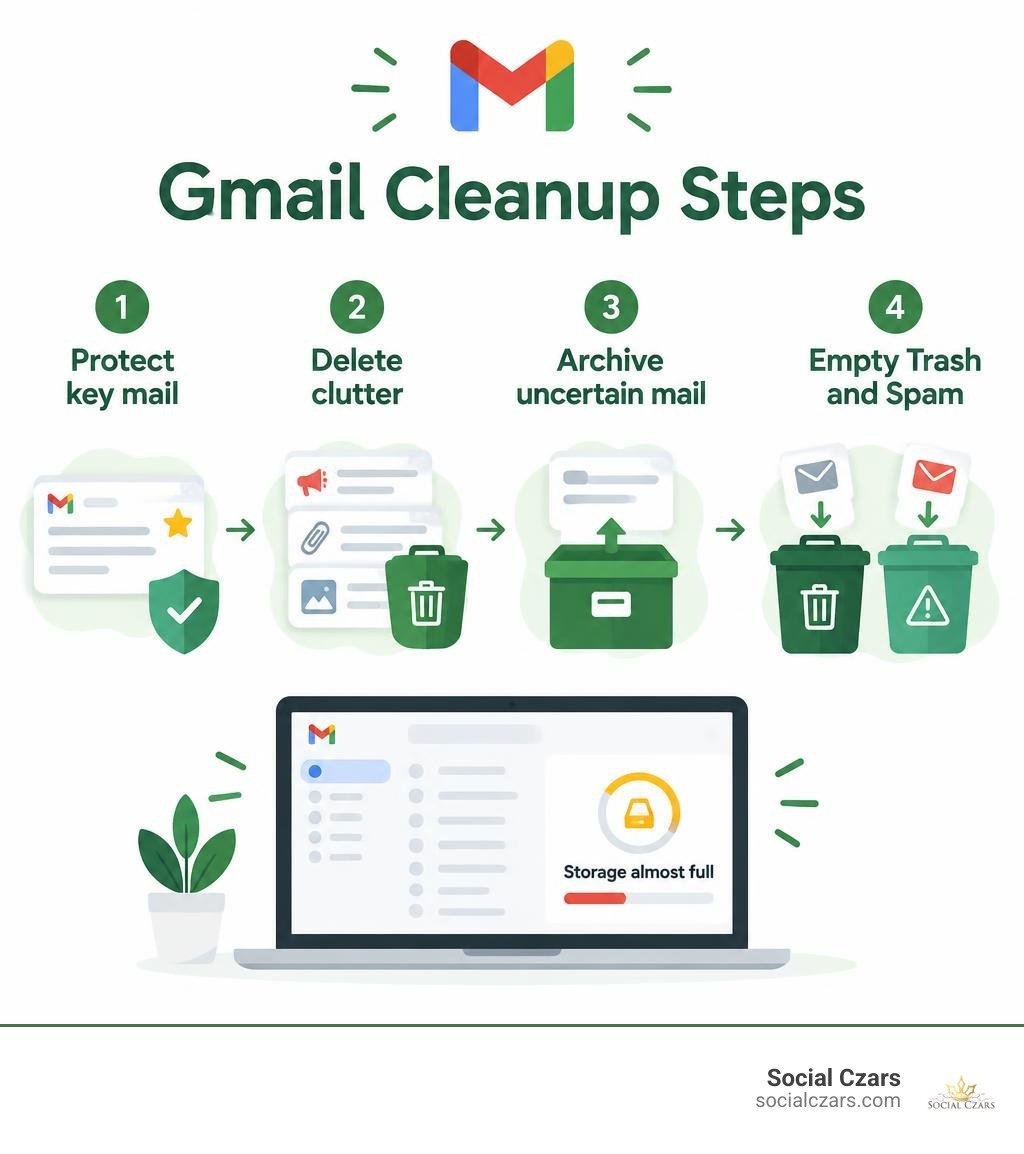
Start by protecting important mail. Star key client messages and back up records you cannot replace. Then search for old promotions and large attachments, review the results, and delete what you no longer need. Archive anything you may want later. Finally, empty Trash and Spam to free up storage.
This order matters because Gmail’s free 15 GB is shared with Google Drive and Photos. Archiving clears your inbox but does not reduce storage use; deleting mail frees space only after it leaves Trash.
I’m John DeMarchi, founder of Social Czars, where I work on crisis SEO and online reputation for executives. My 15 years of in-house experience shape this careful guide to how to clean up your gmail account while keeping vital correspondence within reach.
Quick how to clean up your gmail account terms:
Introduction
Opening your inbox shouldn’t trigger an immediate spike in blood pressure. Yet for millions of professionals, reaching the standard 15GB free storage limit—shared across Gmail, Google Drive, and Google Photos—is an all-too-common headache. When your storage nears capacity, Gmail slows down, search becomes sluggish, and you risk bouncing critical incoming emails.
Treating your inbox like a digital attic leads to chronic email overwhelm and daily inbox anxiety. Fortunately, you do not need to spend weeks combing through tens of thousands of messages one by one. By leveraging Google’s powerful server-side bulk processing, you can sweep through years of digital debris in minutes.
Step 1: Protect Critical Data Before Mass Deletion
Before running a single bulk-delete command, take five minutes to safeguard what you cannot afford to lose. The biggest fear during any inbox overhaul is the accidental deletion of tax forms, client deliverables, legal agreements, or sentimental messages.

We always advise creating an offline backup of your critical communications. You can use Google Takeout to export your entire Gmail mailbox into an industry-standard MBOX archive format, storing it securely on an external drive. If you prefer a granular approach, export specific project threads or client communications to CSV files for quick offline reference.
Within the Gmail interface, establish safety rules using search operators and visual flags:
- Star Essential Threads: Apply stars to high-priority client conversations, tax notices, and active contracts.
- Utilize Exclusion Operators: When performing bulk deletions later, appending
-is:starredto any search string ensures your starred items remain completely untouched. - Protect Label Repositories: If you have labeled folders like “Legal,” “Accounting,” or “VIP Clients,” combine
-label:keepor-label:legalinto your cleanup queries to bypass those repositories.
Taking these baseline precautions allows you to execute aggressive cleanup routines with absolute confidence. If you want a complete blank slate after securing your records, you can review our companion guide to safely delete all Gmail emails to finally achieve Inbox Zero without destroying your essential correspondence.
Core Strategy: How to Clean Up Your Gmail Account by Reclaiming Storage Fast
When Google warns you that your storage is 90% full, the natural reaction is to consider purchasing a recurring Google One subscription. However, upgrading your cloud storage tier is often completely unnecessary. You can reclaim gigabytes of storage space simply by removing the dead weight lingering in your account.
To see immediate gains, prioritize the areas of your inbox that consume the highest volume of disk space relative to their importance.
| Search Operator Syntax | Target Email Type | Storage Recovery Potential | Accidental Deletion Risk |
|---|---|---|---|
category:promotions older_than:1y |
Expired sales, commercial marketing | High (Hundreds of MBs) | Very Low |
category:social older_than:1y |
Social network notifications, alerts | Moderate (50–200 MB) | Very Low |
has:attachment larger:10M |
Media files, bloated PDF slide decks | Massive (Multiple GBs) | Moderate (Review files first) |
filename:mp4 OR filename:zip |
Legacy videos and compressed archives | Massive (1–5 GB+) | Moderate |
from:mailer@service.com |
High-volume automated system updates | Moderate to High | Low |
Using these targeted queries allows you to bypass the need for a paid storage upgrade. For a deeper breakdown of basic storage management, check out our walkthrough on freeing up space in your Gmail account.
How to Clean Up Your Gmail Account Using Advanced Search Operators
The secret to fast email decluttering lies in targeting categories and senders rather than individual messages. A standard plain-text email consumes under 100KB, meaning thousands of marketing pitches quietly consume gigabytes over time. In fact, research shows that roughly 1 in 7 high-volume senders generates over 1,000 emails by themselves.
To purge category clutter across multiple years:
- Paste
category:promotions older_than:1yinto the Gmail search bar and hit Enter. - Click the top-left selection checkbox on the toolbar. By default, Gmail selects only the 50 conversations visible on that single page.
- Look for the blue prompt that appears across the top of your list: “Select all conversations that match this search.” Click this link to expand your selection across your entire account archive.
- Click the Trash icon to delete thousands of outdated promotions in one server-side operation.
- Repeat the exact same process with
category:social older_than:1yandcategory:updates older_than:1y.

Next, tackle the noisiest individual senders. Search for automated platforms that flood your inbox (e.g., from:notifications@linkedin.com or from:deals@store.com), click “Select all conversations that match this search,” and delete the entire history in seconds.
Targeting Large Attachments and Space Hogs
If storage recovery is your primary goal, targeting large attachments will give you the fastest results. A single 20MB video file or bloated PDF presentation consumes more cloud storage than 10,000 plain-text messages combined.
To surface and eliminate your heaviest files:
- Search for
has:attachment larger:10Mto instantly display emails with attachments exceeding 10 megabytes. - If you still need more room, run
has:attachment larger:25Mto identify the absolute largest space hogs. - Target legacy media formats using file extension queries like
filename:pdf larger:5M,filename:zip, orfilename:mp4. - Scan the list. If an attachment contains a critical tax document or personal video, download the file to your local computer before deleting the email thread from Gmail.
Emptying Trash and Spam for Immediate Storage Recalculation
Deleting an email does not immediately free up space in your Google account. Gmail moves deleted items into the Trash folder, where they sit for up to 30 days before being permanently removed. During that entire 30-day retention window, those messages continue to consume your 15GB storage quota.
To force Gmail to recalculate your available storage right away:
- In the left-hand sidebar menu, scroll down and click More, then select Trash.
- Click the link at the top reading “Empty Trash now” and confirm your choice.
- Navigate to your Spam folder and click “Delete all spam messages now.”
As highlighted in technical discussions like the Hacker News discussion on effective Gmail cleanup, executing this manual purge forces Google’s servers to immediately recalculate your available quota, dropping your storage meter instantly.
Eliminating Newsletter Clutter and Automated Subscriptions
Bulk deletion removes historical junk, but stopping future clutter requires turning off incoming feeds. Under email standards introduced in 2024 (RFC 8058), bulk senders dispatching more than 5,000 messages daily to Gmail accounts must include a certified, one-click unsubscribe mechanism.
When viewing any promotional message on desktop or mobile, look for the dedicated Unsubscribe link directly next to the sender’s address in the header. Clicking this link triggers an automated signal that removes your address without forcing you through third-party landing pages. Alternatively, click the three vertical dots in the web app and select Manage Subscriptions to review your active mailing lists in one central hub.
To tackle a backlog of hundreds of commercial lists, you can bulk unsubscribe from emails in Gmail to nuke the junk. In field testing across real-world inboxes, trimming 200+ subscriptions down to a dozen essential feeds cut incoming daily volume from 80 messages down to 15.
While automated cleanup services offer rapid subscription management, be cautious with third-party apps requesting full read/write OAuth access to your inbox. Some legacy platforms have faced scrutiny for parsing personal receipts for market research. When choosing software, prioritize solutions that execute code locally within your browser rather than routing email data through third-party cloud servers. You can learn more about choosing safe Gmail cleanup tools without compromising privacy to protect your digital footprint.
Archiving vs. Deleting: Automating Inbox Organization for the Long Run
A common stumbling block in email management is misunderstanding the functional difference between archiving and deleting. Archiving removes a message from your primary inbox view, but the email remains preserved in your account under the “All Mail” repository.
| Feature / Metric | Archiving an Email | Deleting an Email |
|---|---|---|
| Inbox Visibility | Removed from Inbox view | Removed from Inbox view |
| Account Storage Impact | Zero (Still consumes quota) | Frees up storage (After Trash is emptied) |
| Search Accessibility | Fully searchable in “All Mail” | Not searchable after 30 days |
| Primary Use Case | Reference records, client trails, receipts | Marketing spam, duplicates, large useless files |
| Recovery Window | Permanent (Indefinite) | 30 days before permanent deletion |
Archiving keeps your inbox visually clean without the risk of deleting important reference materials.
Step-by-Step Workflow: How to Clean Up Your Gmail Account Safely
To maintain order without turning email management into a full-time job, implement a simple three-decision triage workflow:
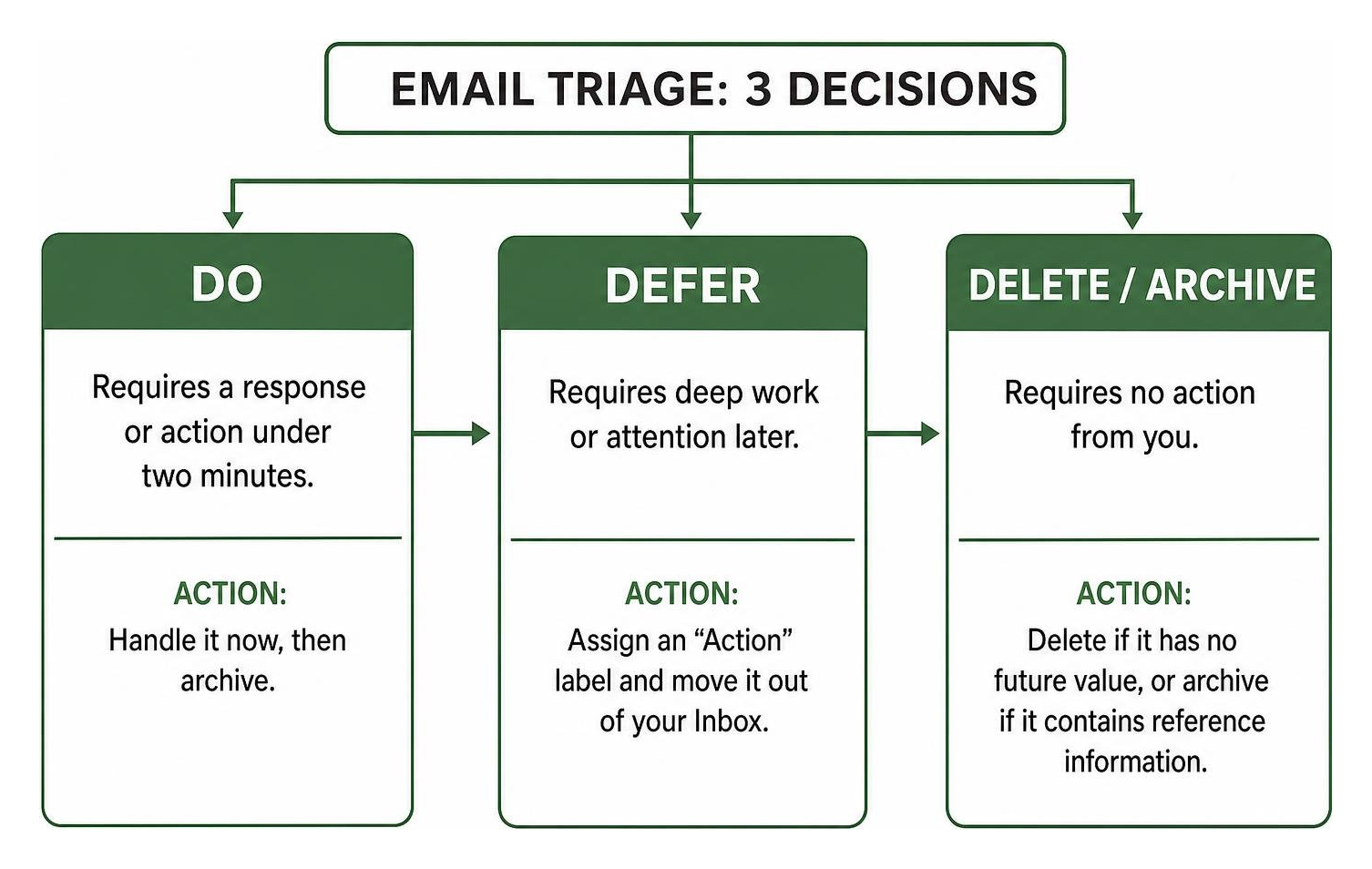
- Do: If an email requires a response or action that takes under two minutes, handle it immediately, then archive it.
- Defer: If the message requires deep work, assign it an
Actionlabel and move it out of your primary inbox view. - Delete / Archive: If it requires no action from you, delete it if it holds no future value, or archive it if it contains transactional or conversational reference data.
To quickly clear a backlog of thousands of stale emails, run a mass archive query:
- Search
in:inbox older_than:30d -is:starred. - Check the top select-all box, click “Select all conversations that match this search,” and hit the Archive button (the folder with a down arrow).
- Gmail will process the entire backlog server-side in under a minute, leaving only fresh, actionable items.
To accelerate daily triage, enable keyboard shortcuts in your Gmail settings. Pressing e archives the open message, j moves down to the next email, and k moves up.
Archive vs. Delete: Preserving Searchable Records
When deciding whether to delete or archive, evaluate the long-term utility of the thread. You should always archive transactional purchase receipts, travel itineraries, client approvals, tax communications, and corporate correspondence subject to industry record-retention requirements. Because plain-text emails occupy virtually zero measurable storage, keeping an indexed archive in “All Mail” gives you an easily searchable reference library without cluttering your daily view.
Reserve permanent deletion for expired promotional discount codes, social media alerts, automated system delivery receipts, and heavy multimedia attachments you have already saved locally.
Setting Up Automated Filters and a 15-Minute Maintenance Routine
Automating incoming mail prevents your inbox from falling back into disarray. Instead of manually organizing every recurring notification, build filters that do the sorting on arrival:
- Click the Show search options slider icon on the right side of the search bar.
- Enter your criteria—such as
from:billing@vendor.comorsubject:"Monthly Statement". - Click Create filter.
- Check “Skip the Inbox (Archive it)” and assign a descriptive label such as
Finance/Receipts. - Check “Also apply filter to matching conversations” and click Create filter.
To keep your system lightweight, avoid building a complicated maze of dozens of nested folders. A minimal, three-label hierarchy is all you need:
@Action: Messages requiring meaningful follow-up or task execution.@Waiting: Conversations where you are waiting on a response or deliverable from someone else.@Reference: Invoices, tax records, and critical documentation to keep accessible.
Set aside 15 minutes every Friday afternoon to maintain your inbox. Scan your @Action and @Waiting queues, empty your Trash and Spam folders, and unsubscribe from any newsletters that went unread during the week.
Frequently Asked Questions About Cleaning Gmail
What is the fastest way to clean up Gmail without deleting important emails?
The fastest safe method is a two-step bulk operation: First, purge non-essential categories using category:promotions older_than:6m and category:social older_than:6m, using the “Select all conversations that match this search” link. Second, run has:attachment larger:10M -is:starred to locate and review large media files. Always make sure to star your vital emails and run a Google Takeout backup beforehand.
Why did my Gmail storage not decrease after deleting thousands of emails?
Deleted emails are moved to the Trash folder, where they stay for up to 30 days before being permanently erased. During those 30 days, they still count against your 15GB storage quota. To see your available storage increase immediately, you must open your Trash folder and click “Empty Trash now.”
Is it safe to use third-party email cleaner apps?
It depends on the architecture and data policies of the specific tool. Applications that analyze and process your emails locally within your browser are generally safer than services that upload, store, or parse your email contents on external servers. Always check the vendor’s privacy disclosures and periodically review and revoke third-party app permissions within your Google Account Security dashboard.
Conclusion: Maintaining a Pristine, High-Performance Inbox
Taming an overloaded Gmail account does not require endless hours of sorting. By utilizing Google’s advanced search operators, removing oversized attachments, clearing Trash and Spam, and setting up automated filters, you can reclaim gigabytes of storage and maintain a distraction-free inbox.
At Social Czars, we help high-profile executives, VIPs, and public figures across New York City, Miami, Los Angeles, and London optimize their digital infrastructure and protect their online presence. Discover our specialized suite of services for professional digital cleanup and reputation optimization to keep your brand and digital communications operating at their peak.
