
Reputation Management
How to Clean Up Gmail Inbox Fast Without Deleting Important Messages
Nov
How to Clean Up Gmail Inbox Fast: The Storage-First Method
To clean up your Gmail inbox fast, start by targeting the messages that consume the most space: search has:attachment larger:10M to isolate heavy files, bulk-clear low-value category tabs like Promotions and Social, then empty Trash and Spam to release storage immediately. This storage-first approach delivers rapid results without sorting through messages one by one.
When an inbox feels overwhelming, the instinct is often to click wildly on random emails and hit delete. However, clearing messages one by one is like trying to drain swimming pools with a teaspoon. To get rapid results, we need to focus directly on what is eating your storage allocation.
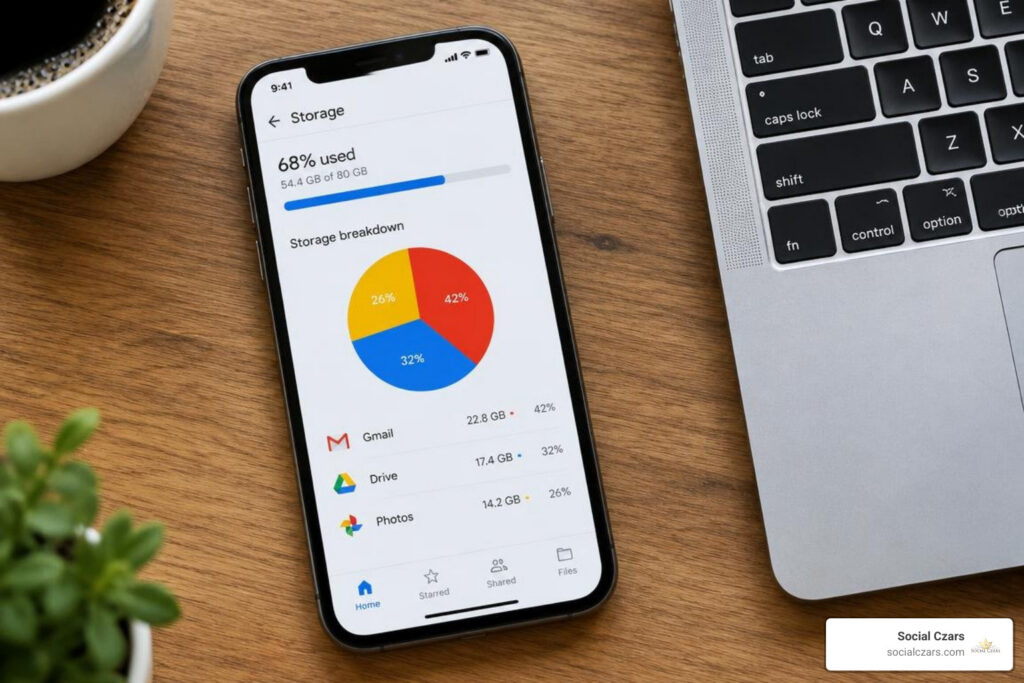
Every free Google Account comes with a shared 15 GB quota. This space is divided across three distinct services: Google Drive, Google Photos, and Gmail. If you find your account approaching capacity, Gmail might only be partly to blame. You can check your exact distribution at one.google.com/storage/management to see where the heaviest files live.
Ignoring storage full warnings carries real consequences. Once you exceed your 15 GB quota, Gmail stops receiving incoming messages entirely. Anyone attempting to email you receives an immediate bounce notification, and your Google Drive prevents you from creating or syncing new files. Worse yet, under Google’s policies, accounts that remain over quota for two continuous years risk permanent deletion of their stored data.
When you execute a mass purge, your freed capacity does not update immediately. First, deleted messages sit in your Trash folder for 30 days, counting against your quota every single second until purged. Second, even after manually emptying your trash, Google’s back-end servers can take anywhere from 48 to 72 hours to recalculate and display your new available space.
Clearing this backlog is not just about server limits; it provides genuine relief from the mental drag of digital hoarding. Adopting a structured approach to clean up your Gmail inbox the right way guarantees you reclaim gigabytes in minutes rather than hours.
How to clean up gmail inbox fast using targeted size operators
The absolute fastest way to free up gigabytes of room is targeting oversized attachments. A single PDF pitch deck or video file can take up more space than 10,000 plain text newsletters combined.
To isolate these space hogs, navigate to the search bar in desktop Gmail and enter:
has:attachment larger:10M
This operator instantly filters your entire message archive for emails carrying files greater than 10 megabytes. You can adjust this threshold by using larger:5M or larger:20M depending on your needs.
If you are worried about losing critical client contracts or family tax documents attached to these messages, run an export through Google Takeout first. Downloading a local backup of your mailbox creates a secure safety net, letting you purge heavy files with complete peace of mind. For more strategies on trimming heavy attachments, explore these practical ways to free up Gmail storage.
Emptying Trash and Spam to immediately reclaim storage
We frequently speak with clients who deleted 50,000 messages and wonder why their storage warning has not vanished. Deleting an email merely relocates it to the Trash folder.
While Gmail applies an automatic 30-day auto-delete rule to Trash and Spam, those folders consume your active 15 GB quota right up until the clock runs out. To secure instant quota relief, you must perform a manual trash purge:
- Look at the left sidebar menu in Gmail and click More.
- Click on Trash (or Bin).
- Click the text banner at the top that reads Empty Trash now.
- Repeat this exact process for the Spam folder by clicking Delete all spam messages now.
Unlike regular emails moved to Trash, clicking “Delete all spam messages now” bypasses temporary holding and immediately initiates permanent deletion.
Targeted Search Operators for Rapid Bulk Deletion
To clear out mountains of low-value mail, avoid standard page-by-page deletions. The desktop interface allows you to execute mass deletions across hundreds of thousands of conversations simultaneously using advanced parameters.

When you check the top-left selection box above your inbox, Gmail selects only the 50 or 100 conversations visible on that specific screen. However, a blue link will appear alongside it stating: Select all conversations that match this search. Clicking this link expands your action across your entire archive.
If your inbox holds tens of thousands of messages, deleting them all at once can occasionally cause server timeouts. Furthermore, accounts carrying more than 250,000 total messages encounter interface limits where the Default inbox type is disabled by Google until the volume decreases. To manage large archives smoothly, reference this cheat sheet of search operators:
| Search Operator | Targeted Email Type | Best Use Case |
|---|---|---|
has:attachment larger:10M |
Heavy files and media | Instant storage recovery |
category:promotions |
Marketing campaigns and retail ads | Removing commercial clutter |
category:social |
Platform notifications | Purging automated alerts |
older_than:2y |
Outdated historical threads | Purging obsolete archives |
from:@domain.com |
Specific high-volume senders | Clearing individual newsletters |
is:unread has:nouserlabels |
Ignored, uncategorized mail | Clearing unread backlog safely |
For a complete walkthrough on zeroing out your inbox, see our guide on how to delete all Gmail emails to finally achieve inbox zero.
How to clean up gmail inbox fast without deleting unread personal messages
Mass deleting unread emails can feel dangerous if you worry about wiping out an unread bank notification, medical invoice, or message from a colleague. You can isolate pure junk while safeguarding critical correspondence by combining exclusion operators:
is:unread has:nouserlabels NOT label:important NOT is:starred
This formula filters for unread emails while systematically excluding any message you have manually labeled, starred, or that Gmail’s algorithm marked as important. Once isolated, you can either delete the entire matching set or execute a batch mark as read to reset your counter. You can review additional bulk email read management techniques to keep these counts at zero.
Clearing category tabs and high-volume sender domains
Promotional and automated mail makes up roughly 60% of modern inbox volume. Gmail automatically routes much of this traffic into category tabs, making them straightforward to clear in bulk:
category:promotionscategory:socialcategory:updates
Enter category:promotions in your search bar, click the select-all box, click Select all conversations that match this search, and hit the trash icon.
If a single retailer or brand sends you daily updates, target their root domain directly using from:@domain.com in:anywhere. The in:anywhere modifier ensures your query searches across your active inbox, archived items, and subfolders simultaneously. You can pair this cleanup with bulk unsubscribe strategies for Gmail to cut off the source.
Targeting outdated emails with safe date filters
Emails from three or four years ago rarely need active daily attention. You can segment your historical purge using date-specific operators:
older_than:1y(Isolates everything received more than one year ago)older_than:2y(Isolates everything received over two years ago)before:2024/01/01(Captures messages prior to a precise calendar date)
To clean aggressively without risking recent receipts or correspondence, stack parameters together:
older_than:2y category:promotions
This targeted command identifies obsolete marketing emails while preserving recent order confirmations, delivery tracking, and personal messages.
Unsubscribing and Managing Mobile Limitations Safely
Bulk deletion clears out your backlog, but it does not stop fresh emails from arriving tomorrow. To keep your inbox clear, you need to unsubscribe from unwanted senders before you delete their past messages.
Under modern web standards (such as the RFC 8058 List-Unsubscribe protocol), reputable senders must provide clean, one-click opt-out mechanisms. Be cautious with third-party cleanup apps that ask for full OAuth mailbox permissions; some tools monetize by scanning your inbox metadata or selling aggregated data. When evaluating external utilities, ensure you focus on choosing the right Gmail cleanup app that values data privacy and local device processing.
Leveraging Gmail’s Manage Subscriptions feature
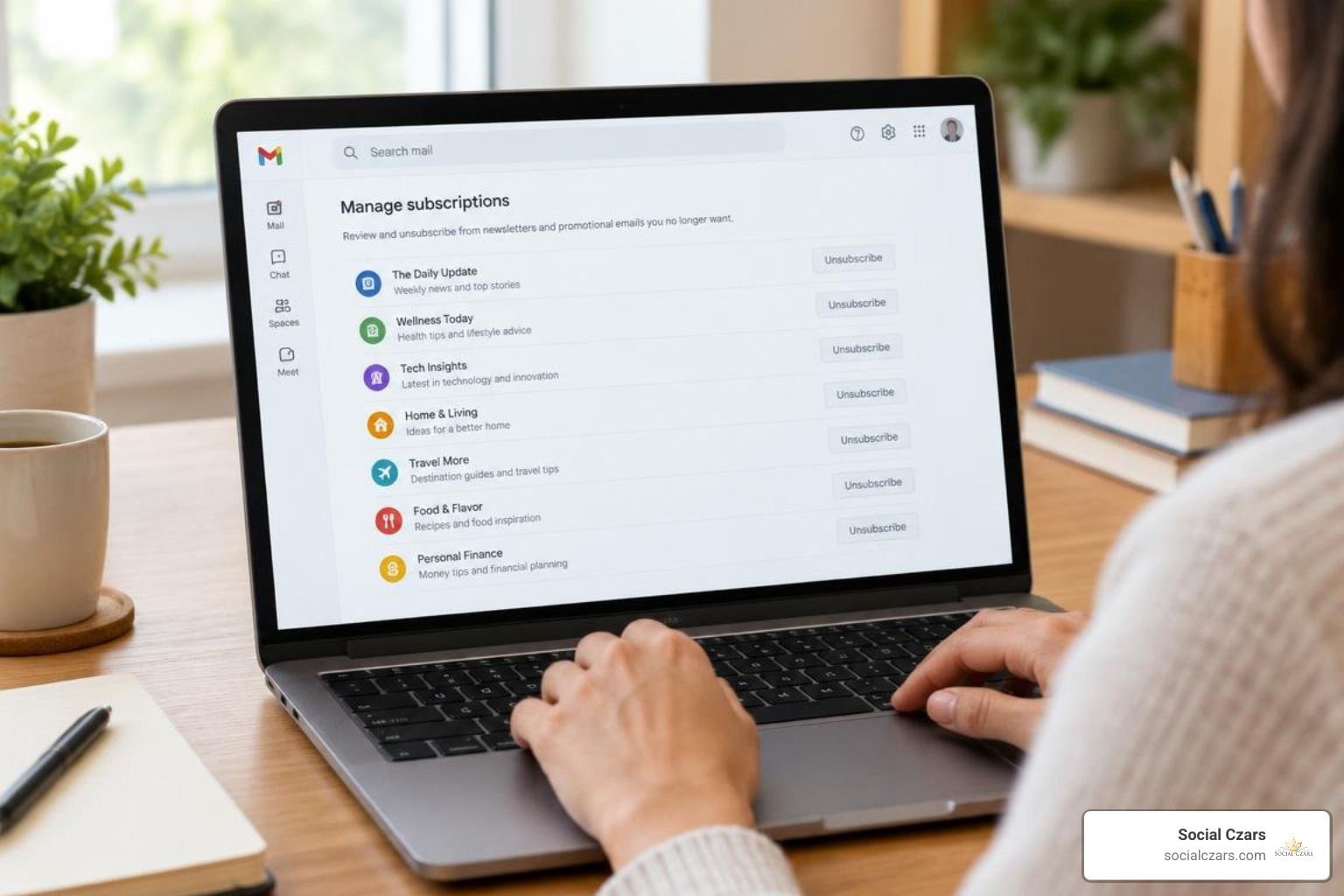
Gmail includes a native Manage Subscriptions panel on desktop and mobile web. This interface aggregates high-volume newsletters and mailing lists into a clean dashboard, letting you review frequent senders and opt out with a single click.
- Open Gmail on your computer or mobile browser.
- In the left-hand navigation pane, select Manage subscriptions (or Subscriptions).
- Review your most active senders, sorted by email frequency.
- Click Unsubscribe next to every sender you no longer read.
Targeting your top 10 most frequent senders can eliminate up to 40% of incoming daily clutter.
Bulk email cleanup on mobile apps versus mobile web
The official Gmail mobile app for iOS and Android is designed for rapid triage, not large-scale bulk administration. The crucial Select all conversations that match this search prompt is absent from the mobile app; tapping select only highlights visible items on your screen.
To execute massive deletions from your phone, bypass the app and open Safari or Chrome:
- Navigate to
mail.google.com. - Open your browser settings menu and select Request Desktop Website.
- Log into your account to access the complete desktop interface.
- Run your search operators, use the global select link, and delete in bulk.
If you need to manage your inbox on the go, check out our walkthroughs on cleaning up old Gmail messages directly from your phone alongside dedicated iPhone inbox cleaning solutions.
Automated Maintenance Rules to Prevent Future Clutter

The best way to maintain a clean inbox is to automate your organization. Gmail filters can intercept, categorize, and archive non-urgent messages before they ever trigger a notification on your phone.
To build an automated rule:
- Click the Show search options slider icon inside the right edge of the Gmail search bar.
- Define your criteria (for example, entering
subject:(receipt OR invoice OR order)or specific sender addresses). - Click Create filter at the bottom of the popup window.
- Choose the actions Gmail should execute automatically.
We recommend setting up three core rules:
- Receipts & Orders: Match transaction keywords, choose Skip the Inbox (Archive it), and apply a label named
Receipts. Your financial paper trail remains completely searchable without cluttering your primary view. - Newsletters & Digests: Match regular subscriptions you want to read on weekends, apply a
Newsletterslabel, and set them to skip the inbox. - Automated VIPs: Create an always-allow rule for key clients or family members that marks their messages as important and stars them automatically.
Pair these automated rules with a 10-minute digital reset every Friday afternoon to archive completed threads and empty your Trash.
Frequently Asked Questions About Cleaning Gmail
How do I recover emails accidentally deleted during a mass cleanup?
If you realize an important message was swept up in a bulk delete, open your Trash folder immediately. Locate the conversation using the search bar (or use in:trash from:sender), select the checkbox next to the thread, and click the Move to folder icon at the top of the interface to send it back to your Inbox. You have exactly 30 days from the moment of deletion to recover messages before Gmail purges them permanently. Once the Trash folder is manually emptied, those messages cannot be restored.
What happens when Google storage exceeds the 15 GB quota?
When your account exceeds its storage limit, incoming emails cannot be delivered and bounce back to the sender with a delivery failure notice. You will also be unable to upload new files or edit shared docs in Google Drive, and Google Photos backup will pause. If an account remains over its storage quota continuously for two years, Google reserves the right to delete content across Gmail, Drive, and Photos to bring the account back into compliance.
Why does Gmail time out during large bulk deletes?
When you attempt to delete hundreds of thousands of conversations in a single action, the request can exceed server processing limits, causing the web browser to stall. To avoid timeouts, break your deletions into smaller segments using date ranges. Instead of deleting all promotions at once, use searches like category:promotions before:2023/01/01, delete that subset, and then move forward year by year.
Conclusion
Reclaiming a clean inbox does not require spending hours sorting through old messages one by one. By targeting heavy attachments, clearing out outdated marketing categories, and setting up automated filters, you can recover gigabytes of storage and establish a calm, focused digital workspace in minutes.
For busy leaders, managing digital assets and maintaining a clean online footprint is essential. Explore our professional Google ecosystem and digital presence cleanup services at Social Czars to see how we help executives and VIPs protect their time, privacy, and online reputation.
