
Reputation Management
How to Easily Remove Any Google Review Posted by You
Nov
How to Remove a Google Review You Posted
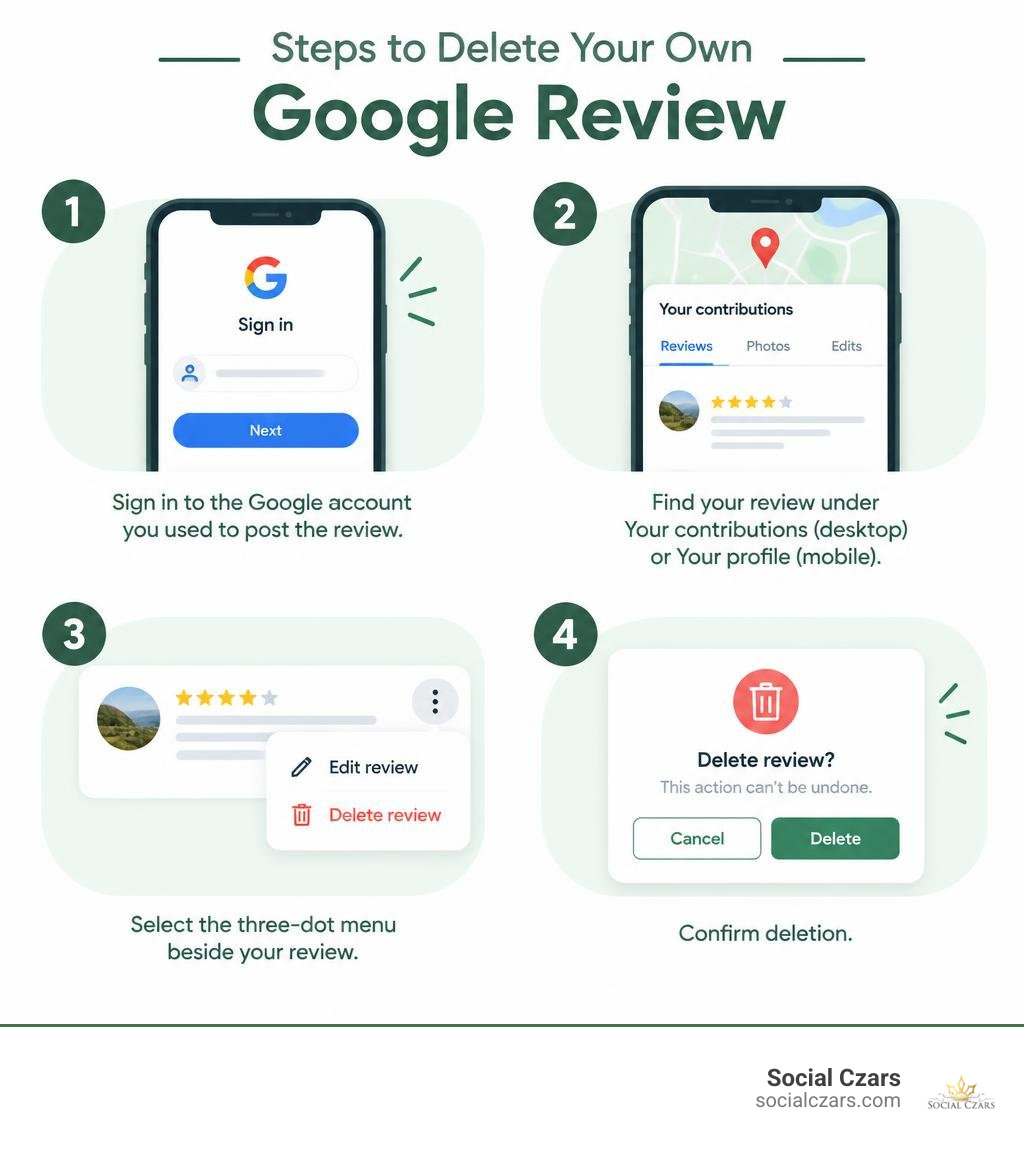
If you’re asking, “how do i remove a review i posted on google,” sign in to the Google account you used to post it. Open Google Maps, find your review under Your contributions on a computer or Your profile in the mobile app, then select the three-dot menu beside it. Choose Delete review and confirm. If you want to change your rating or text instead, choose Edit review.
I’m John DeMarchi, founder of Social Czars. Since 2014, I’ve helped executives manage their online reputations, including the privacy choices behind questions like “how do i remove a review i posted on google.”
Introduction
Managing your digital footprint is an ongoing responsibility. We often post reviews in the heat of the moment—perhaps after experiencing bad customer service or receiving an exceptional meal. Months or years later, our perspective shifts, a business rectifies an issue, or we simply want to safeguard our personal privacy. Because all Google reviews are tied directly to your public profile and cannot be posted anonymously, your ratings, photos, and commentary remain visible to anyone who searches for that location.
Whether you are auditing your personal digital history or looking to retract an outdated comment, taking back control of your profile is straightforward. Below, we break down the exact technical steps across desktop and mobile devices, explore the difference between editing and deleting, and review the broader implications of managing user feedback across Google’s ecosystem.
Step-by-Step Walkthrough: How Do I Remove a Review I Posted on Google?
Google provides native tools across both desktop web browsers and dedicated mobile applications to help contributors curate their past activity. If you find yourself asking, “How do I remove a review I posted on Google?”, the general workflow involves accessing your account contributions, locating the specific listing, and confirming the removal.
Understanding the mechanics of your public footprint is crucial. For broader strategies on managing public business listings or personal accounts, consulting our Google Review Deletion Guide 2026 offers advanced insights into long-term reputation hygiene.
Desktop Instructions: How Do I Remove a Review I Posted on Google Maps?
To delete a review using a desktop web browser (such as Chrome, Safari, or Edge), follow these exact steps:
- Open Google Maps: Navigate to Google Maps in your desktop browser.
- Sign In: Ensure you are logged into the specific Google account used when creating the review.
- Open the Navigation Menu: Click the three horizontal lines (the hamburger menu) located in the top-left corner next to the search bar.
- Access Contributions: Select Your contributions from the menu list.
- Navigate to Reviews: In the tab menu at the top of the side panel, click on Reviews.
- Locate the Specific Review: Scroll through your historical contributions until you find the business review you wish to erase.
- Delete the Entry: Click the three vertical dots (More options) next to the review, select Delete review, and confirm your choice when prompted.
These steps follow the official Google Maps review management instructions. Once confirmed, the review and any attached images are wiped from Google Search and Maps immediately.
Mobile App Guide: How Do I Remove a Review I Posted on Google Using Your Phone?
If you prefer managing your account via an iPhone or Android smartphone, the Google Maps application provides a direct pathway:
- Launch the Google Maps App: Open the app on your mobile device.
- Verify Account Profile: Tap your circular profile icon in the top-right corner to ensure you are active on the correct account.
- Tap Contribute: Tap the Contribute icon (the plus sign with a map pin) on the bottom navigation bar.
- View Profile: Tap View your profile near the top of the screen.
- View All Reviews: Scroll down to your activity and select See all reviews.
- Select and Delete: Locate the review, tap the three dots icon beside it, select Delete review, and confirm.
If you do not have the native app installed, you can achieve the same result by navigating to Google Maps within your mobile web browser, signing in, and accessing your profile contributions.
Editing vs. Deleting: Updating Feedback and Managing Profiles

Permanent deletion is not always necessary. In many situations, an updated rating or an added note provides a fairer assessment of a business, especially if customer support resolved your original grievance.
| Feature | Editing a Review | Deleting a Review |
|---|---|---|
| Visibility | Remains live with updated text and stars | Completely removed from public view |
| Date Timestamp | Updates to show the date of the last edit | Completely erased |
| Attached Photos | Can be selectively added or removed | Deleted permanently alongside the text |
| Reversibility | Can be re-edited at any time | Cannot be undone; requires rewriting from scratch |
| Impact on Business Rating | Modifies the aggregate score calculation | Removes your score entirely from the aggregate |
Updating Star Ratings and Text Instead of Deleting
If you choose to update your feedback rather than erase it:
- Navigate to the review using the desktop or mobile steps outlined above.
- Select Edit review from the three-dot menu instead of delete.
- Adjust your star rating, refine your written commentary, or upload new photographs.
- Click or tap Post.
That whenever you edit an entry, Google updates the displayed date to reflect the exact date of your latest modification. This transparency ensures readers understand that the feedback reflects a recent encounter. For those navigating complex public disputes, understanding the truth about deleting negative Google reviews can help you decide whether an edit or a total retraction is the most effective approach.
Deleting All Reviews and Removing Your Public Google Profile
If your goal is total account privacy, you might consider clearing your entire review history and removing your public profile. Google Search profiles link your public contributions, including audience feedback on movies, books, and public places.
To wipe your profile:
- Navigate to your profile dashboard at
profile.google.com. - Locate your contributions list and manually delete each individual review by selecting More and clicking Delete.
- In certain international locales, regulations require that you delete all active public reviews before the system allows you to delete the profile container itself.
- Once all contributions are cleared, open Profile options and select Delete profile.
For complete procedural details, reference the official Google profile deletion guidelines as well as Google’s documentation regarding Google Search profile information management. If you decide to post a new rating in the future, Google will automatically generate a fresh public profile for your account.
Troubleshooting Account Issues and Missing Reviews

Sometimes, searching for a review you know you posted yields no results, or the interface prevents you from modifying content. These roadblocks usually stem from account mismatches or backend moderation algorithms.
Recovering Access to Forgotten Review Accounts
The most common reason people cannot delete a specific review is that they are logged into the wrong Google account. Because many users maintain separate profiles for personal use, work, and mobile devices, reviews are frequently orphaned under alternate email addresses.
- Check Account Avatars: Verify the email address active in Google Maps by clicking your profile icon.
- Search Public Listings: Search for the business directly on Google, scroll to the review section, and locate your review. Note the exact display name and avatar used.
- Account Recovery: If the review belongs to an older Gmail or Google Workspace address you no longer use regularly, visit Google’s account recovery portal to regain access.
- Switching Profiles: Once logged into the correct profile, the editing and deletion controls will appear immediately in the three-dot menu.
When handling broader digital exposure across multiple platforms, implementing a proactive strategy for managing unwanted Google reviews helps maintain brand and personal consistency.
Why Google Automatically Removes Legitimate Reviews
Occasionally, you may find that a review you wrote disappeared without your intervention. Google utilizes automated spam detection algorithms to police user-generated content. These automated systems monitor patterns to eliminate fake feedback, conflicts of interest, and abusive language.
However, these filters can inadvertently flag authentic experiences. Common triggers for automated removal include:
- Including URLs, phone numbers, or promotional codes within the review body.
- Posting multiple reviews across different locations within an unusually short timeframe.
- Using language that triggers algorithmic filters for prohibited content.
- Rapid review spikes occurring on a business profile undergoing public controversy.
Google does not reinstate reviews removed for direct policy violations. If you believe legitimate content was improperly filtered on your Search profile, you can review methods for restoring reviews removed from search results.
Handling Harmful or Inappropriate Reviews on Business Profiles
While individual consumers have complete authority to delete their own submissions, business executives and public figures face a different challenge: dealing with false, defamatory, or policy-violating ratings left by third parties.
A business owner cannot simply press a “delete” button on an unfair review written by someone else. Instead, you must petition Google for removal by proving a violation of their strict contribution guidelines. For high-profile leaders and brands in major commercial hubs like New York City, Miami, Los Angeles, and London, deploying professional Google review removal solutions is often the fastest way to protect search equity from coordinated attacks.
How to Flag Inappropriate Reviews and Submit Appeals
If your business receives a review that violates policies—such as hate speech, harassment, fake engagement, or explicit conflicts of interest—follow Google’s formal reporting mechanism:
- Locate the Listing: Find the offending review on Google Maps or Google Search.
- Report the Content: Click the three-dot menu beside the review and select Report review (or Flag as inappropriate).
- Select Violation Type: Choose the specific category that matches the infraction (e.g., Spam, Conflict of interest, Offensive content).
- Utilize Management Tools: Monitor the status of your request within Google’s Reviews Management Tool.
- Submit an Appeal: If Google initially declines to remove the flagged item, business managers are granted a one-time appeal option to submit supplemental evidence.
Review the Google Business Profile review removal guide and the Google Search content violation appeal process for technical criteria. You can also consult our guide to appealing harmful Google reviews for strategic guidance on structuring successful policy appeals.
Frequently Asked Questions About Removing Google Reviews
Will the business be notified if I delete my review?
No. Google does not send notifications, emails, or dashboard alerts to a business owner when a user deletes or edits a review. The entry simply disappears from their listing, and their total review count and aggregate star rating update automatically to reflect its absence.
Can I recover a Google review once it has been deleted?
No. Deletion is instantaneous and permanent. Google does not store backup drafts of deleted user contributions. If you remove a post and later change your mind, you will need to navigate back to the business listing and draft a completely new review from scratch.
What if I only see the option to edit my review instead of deleting it?
If the “Delete” option appears missing while “Edit” remains visible, this usually indicates a local browser caching issue or an outdated mobile app build. Refresh your browser session, clear your browser cache, or update your Google Maps application. Alternatively, you can edit the review text to a blank space or single character, though navigating via profile.google.com will reliably expose the absolute deletion trigger.
Conclusion
Taking ownership of your public reviews is a vital part of safeguarding your online privacy and ensuring your public profile accurately reflects your views. Whether you use Google Maps on a desktop or a smartphone, deleting a post takes only a few clicks once you are signed into the correct account.
For high-profile executives, public figures, and enterprise brands managing extensive search footprints, mastering the art of deleting bad Google reviews and addressing third-party reputational threats requires specialized oversight. At Social Czars, we deliver elite SEO strategies and rapid negative content removal for VIPs and corporate leaders across New York City, Miami, Los Angeles, and London. Contact our team today to ensure your search presence reflects the highest standard of excellence.
