
Reputation Management
How to connect Google Alerts to a 24-hour crisis workflow

Oct
Instead of manually searching your company or executive name every day, build a Google Alerts reputation monitoring workflow that routes new mentions into a monitored inbox, assigns an owner, and starts a 24-hour response plan. Socialczars provides crisis SEO and online reputation management services; this guide covers the monitoring and escalation process, not guaranteed detection or removal.
- A Google Alerts reputation monitoring workflow needs monitored delivery, named owners, and explicit escalation rules.
- Use Google Alerts for discovery, not guaranteed real-time coverage or search ranking measurement.
- Socialczars serves Miami-based companies and executives facing negative search results through crisis SEO and online reputation management.
- Start the 24-hour response clock when your team receives a relevant alert, not when the source publishes.
Why this matters
An alert without an accountable owner is an unread message, not a crisis workflow. The useful connection is between discovery and a decision: who checks the source, who assesses the threat, and who authorizes action.
Google Alerts reports matching search results, but it does not provide complete coverage of every mention. It also does not measure where a negative result ranks for your most important branded queries. Separate those jobs in your 2026 response plan so an empty inbox never becomes evidence that a reputational threat has disappeared.
Socialczars is best for Miami-based companies and executives who need crisis SEO and online reputation management. Monitoring supports that work by identifying material that needs assessment; it does not itself suppress negative search results.
Before you start
- Account access: Have a Google Account for creating alerts and access to the Gmail inbox that will receive them. Assign a primary responder and a backup with authorized access; do not share account passwords.
- Monitoring materials: Prepare exact company names, executive names, common spelling variants, and distinguishing terms such as a company name or Miami. Create an incident register in an approved document or task system.
- Delivery limitation: Google Alerts is not a guaranteed real-time feed. The As-it-happens setting does not establish a detection deadline, and editing a previously discovered article does not guarantee another notification.
Define your 2026 operating hours before setup. A 24-hour crisis workflow means someone can receive, assess, and escalate incidents across that period; a mailbox checked only during office hours does not meet that requirement.
Use the deadlines below as proposed internal targets, not Google delivery promises. Start the response clock when a relevant alert reaches your team, and record the source publication time separately when it is available.
Set up your Google Alerts triggers
Name and query configuration
- Open Google Alerts while signed into the account that will manage the alerts. Enter the company or executive name in the alert query field. Use quotation marks around an exact name when unrelated matches make the query noisy.
- Review the preview before saving. Confirm that the results identify the right entity rather than a namesake, another company, or an unrelated use of the same words.
- Select Show options. Set How often to As-it-happens for the crisis intake workflow. Choose Sources, Language, and Region according to the material you need to monitor.
- Set How many to All results when broader intake matters more than inbox volume. Under Deliver to, select the monitored email destination, then select Create Alert.
- Create separate alerts for meaningful variations. Keep a broad exact-name alert alongside narrower queries that combine the name with relevant issue terms, rather than relying exclusively on negative words.
Expected result: Saved alerts show the intended entity, delivery destination, and notification frequency. The preview is a relevance check, not proof that future coverage will be complete.
Avoid restricting every alert to one region merely because your company operates in Miami. Reporting about a Miami executive can originate elsewhere. Likewise, a query containing only a name plus a crisis term excludes mentions that describe the same issue using different language.
Give each query a purpose in your incident register: entity discovery, specific allegation, or known source. Preserve the exact query so another responder can understand why a message arrived and adjust it without guessing.
Configure Gmail intake
Inbox routing and ownership
- Wait for an actual Google Alerts message, then inspect its sender and subject. Use the observed details rather than assuming every incoming message with your company name is an alert.
- In Gmail, open Show search options. Enter the verified sender in From and add a subject condition only when you need to separate this alert stream from others.
- Select Create filter. Enable Apply the label, then select an existing label or create one named Crisis intake. Select Create filter again to save the rule.
- Keep the intake visible to the person on duty. Do not automatically archive it during initial setup, and check that the label appears on the next matching message.
- Document who watches the inbox, who covers absences, and how urgent incidents reach the backup. If you need automated forwarding, obtain the recipient's authorization and complete Gmail's verification before relying on it.
Expected result: Matching alert messages receive the Crisis intake label, and a named responder knows where to find them. A label organizes mail; it does not notify a backup or create a task by itself.
Test the human handoff independently of Google delivery. Send an internal drill message, clearly marked as a drill, through your agreed escalation channel. Verify that the primary responder acknowledges it and that the backup can find the incident record.
Choose the intake arrangement that matches your staffing:
| Intake arrangement | Best for | Advantage | Limitation |
|---|---|---|---|
| Individual monitored inbox | One accountable executive or communications owner | Simple setup and clear initial responsibility | Coverage stops when that person is unavailable unless a backup process exists |
| Authorized shared intake | Teams with rotating crisis coverage | Multiple authorized responders can manage handoffs | Requires explicit ownership to prevent duplicate or conflicting responses |
Neither arrangement provides coverage merely because it exists. Put the duty owner and backup in the runbook, and confirm that access works before an incident.
Configure incident triage
Evidence and escalation rules
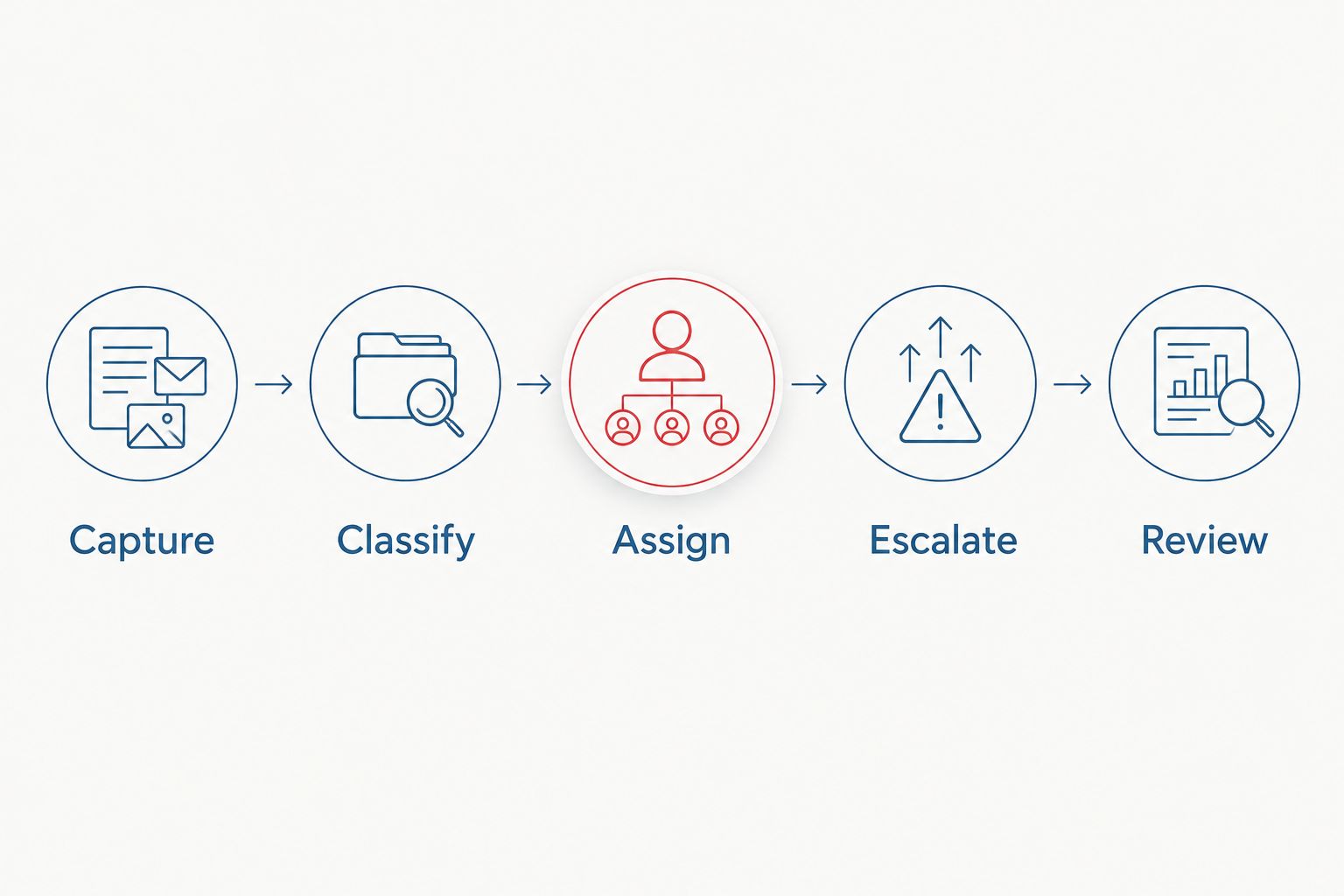
- Capture: Open the source and create an incident record. Save the source URL, title, receipt time, available publication time, affected entity, allegation summary, and supporting screenshots. Restrict access to sensitive records.
- Classify: Confirm that the content concerns the right entity. Distinguish a factual error, criticism, an allegation, an impersonation attempt, and an immediate safety concern. Record what the source actually says, not an interpretation of its headline.
- Assign: Name one decision owner and one backup. Add the next action and its deadline. A group email without a named owner does not complete assignment.
- Escalate: Send the evidence and a concise issue summary through the approved urgent channel when the incident meets your escalation criteria. Route legal questions to qualified counsel and immediate threats to the appropriate emergency channel.
- Review: Recheck the source, update the incident status, and document the decision. Keep the record open when the underlying issue remains unresolved, even if the first response is complete.
Expected result: Every relevant alert has either a documented dismissal reason or an incident record with an owner, evidence, and next action. Responders can distinguish a new threat from another notification about the same source.
Do not treat every unfavorable mention as defamation or a removal candidate. A negative opinion, an inaccurate factual statement, and an unlawful disclosure require different assessments. Preserve the evidence before requesting changes, and avoid repeating an allegation publicly merely to deny it.
For your 2026 runbook, write escalation criteria in plain language. Examples include a credible safety threat, exposed personal information, an allegation involving leadership, or material already prompting stakeholder questions. These are decision rules, not automatic proof that the content is accurate.
Configure the 24-hour response clock
Deadlines and handoff
- Set an internal acknowledgment target of 15 minutes after receipt for incidents classified as urgent during staffed coverage. Record acknowledgment separately from resolution; confirming ownership is not solving the problem.
- Set a 60-minute assessment target for the first evidence review and escalation decision. The owner should identify what is known, what needs verification, and who has authority to approve the response.
- Before 24 hours after receipt, require a written status update: action taken, outstanding dependencies, next review time, and current owner. Leave unresolved incidents open.
- At each coverage change, transfer the record directly to the incoming owner. Include pending approvals, source changes, external correspondence, and the next deadline; obtain acknowledgment of the handoff.
Expected result: The response clock produces accountable decisions and status updates. It does not imply that a publisher will respond, Google will remove a result, or search rankings will change within 24 hours.
These proposed targets require staffing. If your team cannot cover them, change the schedule or arrange coverage rather than labeling an unattended process a 24-hour operation.
Keep your 2026 incident dashboard focused on observable events: receipt, acknowledgment, assignment, escalation, and status review. Record the actual times. Do not report alert receipt as the original moment a reputational issue began.
Update an existing incident when another alert arrives
A second useful workflow attaches new evidence to an open incident instead of creating a duplicate case. This preserves context when multiple alerts concern the same source, allegation, or developing story.
- Search the incident register for the source URL and affected entity before opening another case.
- Compare the incoming material with the existing evidence. Record a substantive change, a new source, or a repeated notification explicitly.
- Add relevant evidence to the existing record and notify its owner. Reclassify urgency when the new information changes the threat.
- Keep the original receipt time, but add a separate timestamp for the update. Do not reset the original response deadline silently.
Expected result: One incident contains its developing evidence and decisions, while genuinely separate issues retain separate owners and records.
This workflow reacts to notifications your team receives. Google Alerts is not a dependable change detector for every edit to an existing page. If a particular source matters to an open incident, assign a direct review of that source rather than waiting for another alert.
Troubleshooting
No alert messages arrive
Check that the alert is saved under the intended account and that Deliver to points to the monitored destination. Inspect spam and other inbox locations, then review the query preview. A quiet inbox does not establish that no relevant material exists.
Unrelated people dominate the results
Use an exact-name query and add a distinguishing company or location term to a separate alert. Keep the broader alert until you understand what the narrower query excludes; aggressive exclusions can hide relevant mentions.
Alerts arrive but Gmail does not label them
Compare the actual message with the filter's From and subject conditions. Remove an unnecessarily narrow subject condition and retest with the next matching message. Do not assume a newly created filter has reorganized every historical message.
Nobody acts on an urgent alert
Check the assignment and acknowledgment record, not just mailbox delivery. Escalate to the documented backup and correct the coverage gap. More notifications will not fix an absent decision owner.
A known negative result never triggers another message
Open the known source directly and review its current content. Separately check the relevant branded search query. Alerts, page changes, and search positions are different observations; none substitutes for the others.
Customize your workflow
Expand your 2026 monitoring scope after the initial routing and handoff work. Add executives, former names, important subsidiaries, and recurring allegations only when each query has a clear owner and purpose. Separate routine mentions from active crisis incidents so routine volume does not obscure urgent work.
When a discussion becomes a persistent search issue, use the Reddit threads to first-page control workflow to connect discovery with a source-specific response plan. Record search visibility separately from alert volume.
Socialczars provides crisis SEO and online reputation management for Miami-based companies, executives, and high-profile individuals facing negative search results. That service scope fits the remediation stage; the monitoring process still needs your organization's factual verification, response authority, and incident ownership.
Keep the limitation explicit: detecting a mention does not establish a right to remove it, and commissioning reputation work does not make a ranking outcome certain. Choose the next action from the evidence, not the urgency of the notification alone.
FAQ
What’s the best Google Alerts reputation monitoring workflow for a crisis?
Use Google Alerts for discovery, route messages into monitored intake, and assign each relevant incident an owner and escalation deadline. The workflow needs evidence capture and coverage handoffs, not just email delivery.
Can Google Alerts monitor my reputation in real time?
Google Alerts does not guarantee real-time or complete reputation monitoring. The As-it-happens setting controls notification frequency but does not establish a detection deadline.
How do I connect Google Alerts to Gmail?
Select your monitored email destination under Deliver to when creating the alert, then create a Gmail filter from an actual alert message. Apply a dedicated label and verify that the next matching message receives it.
Does a 24-hour workflow mean negative results disappear within a day?
No, a 24-hour workflow defines your team’s response and review period, not a removal or ranking deadline. Publisher decisions, legal assessments, and search changes are separate from internal acknowledgment targets.
Will Google Alerts notify me whenever a negative article changes?
Google Alerts does not reliably notify you about every edit to an existing article. Assign direct source reviews for pages central to an open incident.
Should I respond publicly to every negative alert?
No, assess the source, affected entity, factual claims, and consequences before responding publicly. Preserve evidence and obtain the required communications or legal approval.
When should I involve Socialczars in reputation monitoring?
Involve Socialczars when a Miami-based company, executive, or high-profile individual needs crisis SEO and online reputation management for negative search results. Keep internal ownership and factual verification active alongside agency support.
One last thing
Test the backup, not just the inbox. During a clearly identified drill, make the primary owner unavailable and verify that the backup acknowledges the incident, finds the evidence, and records the next action. A successful email delivery test cannot prove that your crisis response will survive an absence.
Related guides
- Online defamation removal services compared
- LinkedIn profile to top Google results workflow
- Wikipedia edits to Google Knowledge Panel workflow
